I thought I ought to write a very brief post to outline my position on WhatsApp now that the deadline for accepting their Terms and Conditiond os Use (Ts & Cs) is fast approaching. You almost certainly, if you hadn’t accepted them earlier, will have begun to receive reminders to accept them or have your rights to use the app withdrawn. They are quite within their rights to enforce acceptance, you/we have no rights in this matter. It is a free app which we have free access to use under the Ts & Cs that Facebook choose to offer the app to us for use.
As explained in an earlier post, my immediate worries and concerns have been mitigated for the moment – and I most certainly will not want to conduct transactions with businesses through WhatsApp – so I will decline that option, and I will accept the new Ts & Cs next time I open the app. For how long my acceptance will be relevant will depend upon Facebook. Should they procede to withdraw their data centre from Ireland, to remove legislative scrutiny from the EU – which we currently, and fortuitously, gain benefit from as part of Facebook’s “European Region” – then I almost certainly will cancel my membership of all Facebook services, including Messenger and Instagram as well. I just can’t trust Facebook Inc. That’s for another day, and for the moment I will just try and ensure my Facebook app privacy settings are to my liking!!
Just a quick word of warning. I originally wrote this article on my old laptop. I wiped that machine without taking one last look to see whether there was anything of value stored on its drive. Lesson learned. That’s why I’m writing this out again.
You probably know this, but just in case you don’t, if you love reading, there is a wealth of reading material available on-line which can be read on a desk-top, lap-top, tablet or mobile phone. This is what you do.
Ebooks and Audiobooks from Cardiff Library.
This is not straightforward, but once you have the system up and running, everything works like a dream.
You need a library membership card. Make a note of your membership number.
You also need to ask the library to issue you with a PIN number.
On your tablet or phone, download the Borrowbox app. This will be in the App Store for iPads and in the Google Play Store for Android devices.
Open the app and login, providing your account number and PIN number. You’ll only have to do this once.
You can then borrow eBooks and Audio Books for free. You can also reserve real books for collection. You can keep the borrowed eBook or Audio Book for up to three weeks. If you forget to return it, your tablet will do that automatically.
Magazines
This is a very similar procedure. You need the same account number and PIN number, but a different application.
It used to be that you needed the RB Digital app but it appears that things have changed. You now need an app called Libby (from April 30th.) RB Digital app goes offline on April 30th.
It is being replaced by a new app called Libby.
It is already available and very easy to use.
It also appears to be able to find ebooks as well as magazines:- a one-stop shop.
The home page is simply a joy:- far more inviting than either Borrowbox or RB Digital.What if you want to buy reading material?
Things you should know.
Kindle ebooks will play on Kindle devices, on any type of tablet or mobile phone.
You can also read Kindle content on a desktop or laptop by using the Kindle Reader application.
Is it possible to buy and read Kindle content without purchasing a device?
Things you should know.
As far as I know, Apple ebooks will only play on Apple devices.
Well, actually it might be possible but it doesn’t look easy.Another thing you should know.
Audio books are available for Kindle, P.C.s, laptops and non-Apple devices.
You have to buy a subscription for £7.99 per month but then have access to their whole library.
Another thing you should know. Apple audio books are available individually.
Just one more thing you should know. You usually have to pay for Kindle classic novels. Apple classic novels are free.
Seems a pretty easy question to ask. Should be a relatively easy question to answer. Wrong! It’s a minefield of complication and you can quite easily find yourself deleting images from places you don’t want them to be deleted from. In this article I’m not going to even attempt to enter the minefield but after this easy one …
How do you delete photos from Google Photos on the web but not from the Camera Roll on your iOS (iPhone/iPad) device …
Google Photos will only delete photos from your Camera Roll if you grant it permission to do so. If you delete from https://photos.google.com/ and then go to your phone app you will have an assistant card asking for permission to “Remove it from this device” If you dismiss the card the photo will remain in the Camera Roll.
… I’m just going to refer you to these three articles …
First the generic article that covers all eventualities and takes into account the place of Backup and Sync in the process for the Android world …
… note the important piece of text in this article …
“While keeping a file on Google Photos and deleting it from a device is easy, it’s not simple to do so the other way round. When you delete a synced photo from the Google Photos app, it gets wiped from your phone and the cloud storage.”
… so take care and read what follows in that article.
… so heaven help you if you’ve got both Android and iOS devices; the process is not the same for both!
Lastly, and to fully understand what’s going on, it’s important to perhaps try to understand how Google Photos actually works. You can do this by reading this article …
… if that hasn’t made you feel suicidal, can I just wish you the best of luck. Perhaps buying a new phone, or taking out a Google One subscription is the only answer.
Could that be the reason why it’s so complicated to delete a Photo from Google Photos?
====
You might also find these articles from Google useful. Firstly an introduction to Backup and Sync and how it works with photos and videos (hint, it doesn’t actually do any sync’ing) …
If you’ve got a Google account – you use Google Photos, Google Drive (and the Google Docs suite) or Gmail – you’ll probably have received an email telling you about the changes that Google are making to the way it calculates how much of the 15Gb of storage the company allocates to you has been used. They have also spelled out clearly when they will delete content that has been inactive for more than two years.
This post relies heavily (almost verbatim) on information already available on Google’s Help Pages – which should always be taken as the main source for information.
Currently each Google Account includes 15 GB of free storage quota, which is shared across Gmail, Google Drive, and Google Photos. You can add to your storage quota by purchasing a Google One membership (where available). To learn more about your quota, see what items count towards your storage.
Prior to June 1, 2001
The following items count against your storage quota
Gmail messages and attachments, including your Spam and Trash folders
Most files in Google Drive, including PDFs, images, and videos
If you go over your storage quota
You can no longer upload new files or images to Google Drive
You can’t back up Original quality photos and videos to Google Photos
Your ability to send and receive email in Gmail may be impacted
You can still sign into and access your Google Account
After June 1, 2001
The following additional items will count against your storage quota:
High quality and Express quality photos and videos backed up to Google Photos after June 1, 2021. Learn more about this change.
Files created or edited in collaborative content creation apps like Google Docs, Sheets, Slides, Drawings, Forms and Jamboard.
Only files created or edited after June 1, 2021 will count against your quota.
Files uploaded or last edited before June 1, 2021 will not count against your quota.
And this is how your usage impacts your data
If you do not use Gmail, Google Drive (including Google Docs, Sheets, Slides, Drawings, Forms or Jamboard) or Google Photos for 2 years, your content within the inactive product(s) may be deleted (after reasonable advance notice).
If you go over your storage quota
You can’t upload new files or images to Google Drive.
You can’t back up any photos and videos to Google Photos.
Your ability to send and receive email in Gmail can also be impacted.
You can’t create new files in collaborative content creation apps like Google Docs, Sheets, Slides, Drawings, Forms and Jamboard. And until you reduce your storage usage, neither you nor anyone else can edit or copy your affected files.
You can still sign into and access your Google Account.
When you have been over your storage quota for 2 years, your content in Gmail, Google Drive (including Google Docs, Sheets, Slides, Drawings, Forms and Jamboard files) and Google Photos may be deleted.
So it’s time to do a stock take of what Google Storage you’re using. You’ll see something like this if you’ve got an active Google account …
Seeing how you may be using your Google Storage, with June 1st approaching might seem pretty frightening to you, so you might need some help to know what you should do, and whether purchasing a Google One plan might be right for you …
What happens when you’re over quota
When you’re over quota, it means you’re using more storage space than you have available. If you’ve been over quota for 2 years or longer, and you have not freed up or purchased more space to get back under quota, all of your content may be removed from Gmail, Drive and Photos. But before that happens, we will:
Give you notice using email and notifications within the Google products. We will contact you at least three months before content is eligible for deletion.
Give you the opportunity to avoid deletion (by paying for additional storage or removing files)
We provide access to storage management tools that help you identify ways to free up storage space at https://one.google.com/storage. Another option to free up space is to download your files to your personal device and then delete them from your cloud storage.
However …
If you want more storage space for Gmail, Drive, and Photos, you can upgrade to a larger storage plan with Google One. You can click on the link “Get more storage” from the page that you should have arrived at above, and you’ll be offered the opportunity of purchasing a Google One Storage Plan …
But what happens when you’re inactive?
When you have been inactive in Gmail, Google Drive (including Google Docs, Sheets, Slides, Drawings, Forms, Jamboard or Sites files) or Google Photos for 2 years, all of your content may be removed from that product. But before that happens, we will:
Give you notice using email and notifications within the Google products. We will contact you at least three months before content is eligible for deletion.
Give you the opportunity to avoid deletion (by becoming active in the product)
If you’re a Google One member with no outstanding payment or quota issues, you are considered active.
Important: As an example, if you’re inactive for 2 years in Photos, but still active in Drive and Gmail, only your Google Photos content will be deleted. Content in Gmail and Google Drive (including Google Docs, Sheets, Slides, Drawings, Forms and Jamboard files) will not be deleted if you are active in those products.
How to stay active in these products
The simplest way to keep your data active is to periodically visit Gmail, Google Photos, and Google Drive (and/or collaborative content creation apps like Google Docs, Sheets, Slides, Drawings, Forms, Jamboard and Sites) on the web or through a Google app. Make sure you’re signed in and connected to the internet.
Please note that you may have multiple accounts set up on your device. Activity is considered by account, not by device. Make sure you’re using the services for all accounts on which you wish to remain active.
The article from Google concludes with some FAQ which you might like to refer to, including one answer on how to preserve content from a loved one if they pass away and the use of their Inactive Account Manager.
In another article, I will attempt to answer the vexed question of how to delete photos from Google Photos in your storage plan, your computer and your device the way that you want them to be deleted, ie not deleting them all, just deleting them from the place you want them deleted!!!!
Another full screen with 16+ of us spurring the lovely sunshine for a chat! I started the meeting off by talking about the changes to Google Photos that will occur on June 1st and the 15Gb of free storage you get with Google Drive. I’ve written about these separately, so won’t include that content with these notes.
I also touched upon the deletion of photos from Google Photos, on computers, the cloud and mobile devices, but again, I’ve written a separate post on that so won’t repeat anything here.
I rushed through the new content on the Flipboard magazine, highlighting the post on Reddit, which was a response to the question Steve asked at the last meeting (he also asked about RSS feeds but I responded to that one in the last notes); the iOS 14.4.2 (or 12.5.2 for older devices) that Owen had alerted us to; and articles on the latest update to Audacity and a review of the “best” photo-editing apps – I can recommend Snapseed for anyone using Google Photos in particular.
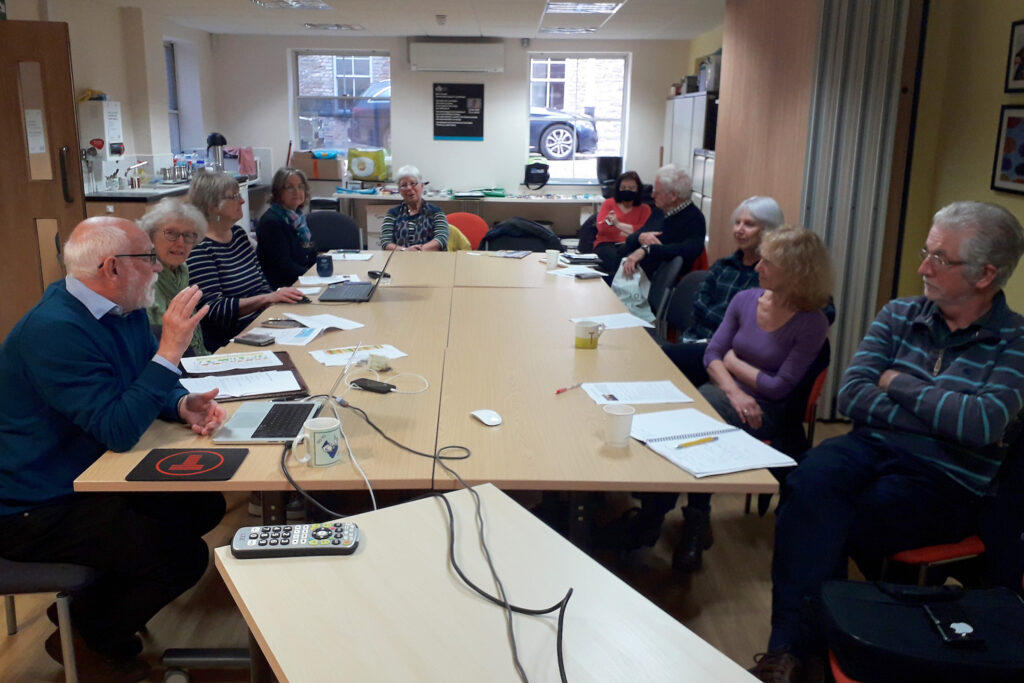
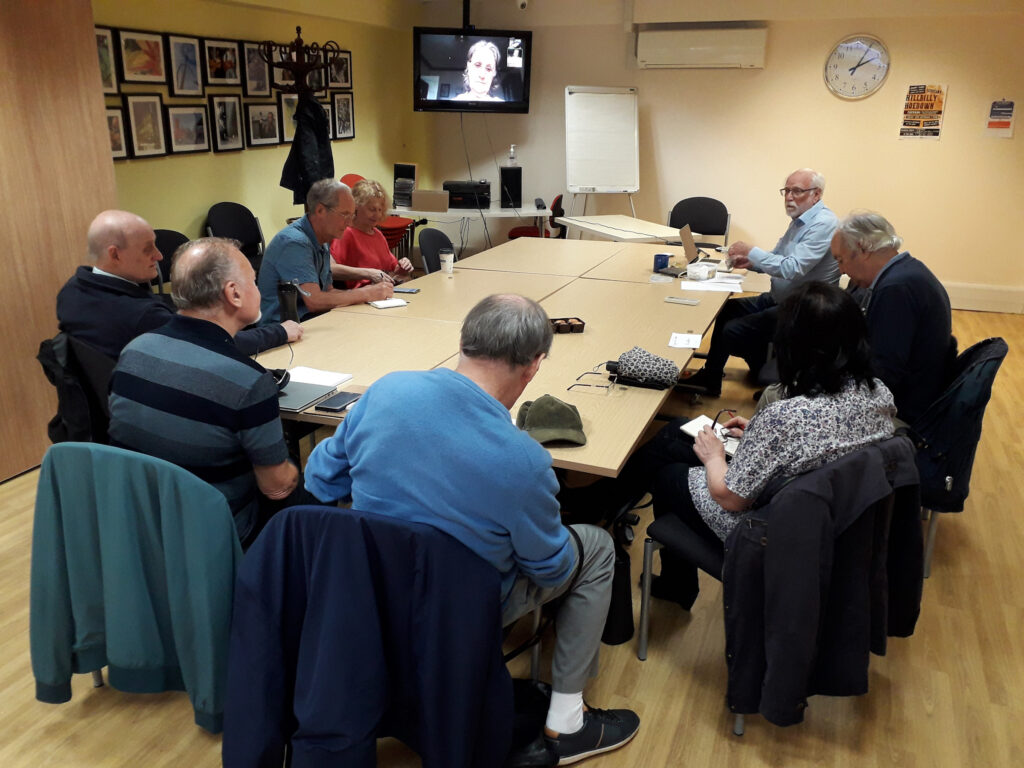
We then went round the screen (although not in the order of Jim’s screenshot above – many thanks again). I’ll only mention things that people raised …
Owen opened a discussion about the possibility of mixed media (in person, face-to-face PLUS Zoom) that the Committee was going to discuss in the near future. The following suggestions were put forward, and Owen would welcome any further ones as well. Don suggested Alternate Meetings rather than joint ones. Jim suggested that there might be challenges with getting the sound quality right.I said that I thought the management of the meeting might prove challenging, and in particular Screen Sharing might be difficult. Steve commented on the number coming into such meetings. Paul highlighted the issue of remote attendees being able to see in person attendees. Phil suggested the setup would have to be – two laptops, two screens, two cameras and a high quality WiFi!!! We all agreed this would be unlikely at the URC 🙁
Barbara would be grateful for any information on Google Photos and I promised to make available some links to articles I’d written in the past. [This prompted me to think that a lot of what we’d got on the old Google+ platform would still be relevant, and caused me to look after the meeting at this presumably underused resource.] After the meeting I resolved to do more actively with the Forums and Topics area of the website – so watch out, you’ve been warned – another place for you to look!!
Paul retold his recurring story of negotiations with TalkTalk suggesting he was thinking of moving to Sky Central. He managed to reduce his fee to £22 for Broadband, TV – no premium channels, free calls and overseas calls) from £27pm. Seems like a bargain!!!
David H had been alerted that his Google Photos account was at 85% storage capacity and he’d been asked to consider upgrading to Google One (Jim and I both have such accounts) which would give a total of 115Gb of storage. He’d started looking round for a method of transferring photos from the Google Photos Cloud to his desktop and had settled upon using the Mozilla Foundation’s free email client – Thunderbird to do that job. [Personally, I’m not sure why David couldn’t have just downloaded the photos, but perhaps I’ve forgotten to note something he said.]
Jim mentioned that he’d been experimenting with the Intel Graphics Command Centre (see below) …
… as a means to calibrate the displays on his devices so that the colours were comparable. I commented that I’d spent some time recently trying to do the same with a Samsung TV and after some time had completed the calibration, only to end up with a Profile that I couldn’t detect a difference from the supplied one!!!!
Jonathan mentioned he’d recently been working on Photos Books using a process he’d been introduced to by Jessops (now sadly going into administration for the third time). The system he’d used was from a company called Cewe – I will include the details he supplied to me in a Forum called Photo Albums, and add a few other possibilities there as well – please feel free to add any you have chosen with a brief review of what you like, or dislike about it.
Steven was interested at Paul’s TalkTalk pricing – he might be taking that further as it’s approaching his contract renewal time. I mentioned that anyone thinking of changing ISP should very seriously consider opening a Gmail, Yahoo mail or Outlook/Hotmail (Microsoft) account and use that as it would ease the pain of moving away from one ISP to another. You can setup forwarding from your ISP’s mailer to the chosen one before you move (or even if you don’t intend to move at this time), and inform everyone (I did so by putting a note in the Signature of my email) of your new email address.
Don was doing just this email accounts thing at this very moment, and I quickly showed how to add a Google account to an existing account from the Icon displayed on a Google Chrome (or Gmail, Drive, or Photos) page.
John also commented on Photo Albums, but I didn’t note down the one he was using. Perhaps you could add a Comment/Reply in the Photos Albums Topic? I have recorded he said it cost c.£30 for 28 photos, and you could get both hardback and softback editions.
Phil noted that in his research recently for a new computer he’d realised that cloud storage was cheaper than hard disk storage. [My comment: you need to get the right balance. Cloud storage is slow – it’s OK for archiving stuff. I’ll set out my thinking/strategy in a Topic at a later date.]
Another lively meeting that once again saw Google settings omitted due to lack of time. At the end of the meeting I declared my intention to start with that next time, and especially look at Google Photos, and for the “round the screen” to follow.
Matters arising from the previous meeting. I mentioned that I’d put an article about the Pensions Issue for Women on Flipboard; I highlighted Jim’s Comment on the Meeting Notes that referred to his video; Fred reported that TalKTalk seemed to have got their act together in Cregiau – now he needed to get his act together with Signal!!
I went briefly through the items I’d added to Flipboard highlighting articles on screen sharing in Zoom; deleting Fb posts; the free password manager now available with Dropbox; the differences between USB standards and cable-types [NB we agreed to hold a session on this at some stage]; on adware; deleting online accounts; and a tool you can employ to move photos from Apple iCloud to Google Photos.
Member Issues.
Marie-Christine was interested in the idea of deleting online accounts and “disappearing” from the Internet [This will be a good subject for a session at a later date].
David H reported that the transition of his wife’s bank account away from M&S Bank had gone well [It’s interesting that a couple of banks, notably HSBC, have offered incentives to entice ex-M&S customers to join them].
Don told us about his grandson tutoring him over FaceTime – something we’ve all got used to. He also advised us that an article had appeared in The Times on sharing Netflix access codes. They were clamping down on this and making sure that “families” were living in the same house!
We advised Barbara that she might consider using speedtest.net, or uswitch.com, to test the speed of her internet connection and if it wasn’t performing as per spec. then to follow that up. She is with VirginMedia and as this is cable, she should rigorously challenge them if they’re not delivering the speed they should be as per contract.
Stella raised the interesting issue of being advised on her TV that an insecure WiFi network was trying to access her TV. We re-assured her that there were many WiFi networks around every house and it was inevitable that you’d see more than just your network. As long as your network has a secure password then you don’t need to worry. In this case it was probably just a neighbour clicking on a network at random, or by mistake.
Phil was enjoying his new MacBook Air; he had installed (just because he could I suppose) Parallels Desktop to enable him to run Windows 10 on it, as well as Ubuntu (Linux). Why spoil a lovely Mac is my comment!
The problem Marilyn had been experiencing with her external Hard Disk was now resolved – she wasn’t really sure how! She was experiencing problems connecting to/using Signal. Hopefully that’s resolved itself too now.
Paul‘s partner liked the old Windows 7 games (no comment); he’d found a way of installing them on Windows 10 and had put a link on Signal to inform anyone else of the solution. He was also cross at TalkTalk trying to increase the cost of his fixed-price contract before it came to the final date.
Steve reminded us that it was easy to Mute yourself on Zoom and then unmute by using the spacebar; a practice it would be good for all of us to employ. He also had been getting some scams on Text messages – like the ones we reported on a few weeks ago. He also asked about RSS (Really Simple Syndication) and Reddit – what are they, and are they of interest/use. I was able to answer immediately how I used RSS feeds – and described in this post I’d written on how I use them to prepare for meetings and the Flipboard magazine – and I promised to get back about Reddit, which I did in a Signal post; the text of which I include below …
“A quite good explanation of Reddit is given here. You can perhaps think of Reddit as Bulletin Boards and Forums for everyone. Rather like the Forums and Topics on Thought grazing.”
Renee was experiencing some problems with Virgin Media
Owen was excited to tell us that Beacon Error Message 502 had now been fixed. I enquired when the new version of Beacon was likely to be ready. Sometime, never is probably the answer!
Christine‘s problem with her WiFi had returned, it’s sporadic. For her, Renee, and Barbara it’s important to press the problem with VM. They may offer free WiFi extenders. VM is the fastest network you can get. Don’t give up on it, just make them deliver the service they’re supposed to.
In case you are wondering how I take a picture of our Zoom meetings, the answer depends on which operating system you are using. (I am using Windows 10.)
David has supplied these instructions for Apple users:
To do a screenshot of an iOS or iPadOS device, press the power-off button and then the Home button.
With a Windows computer, the simple answer involves the ‘PrtSc’ key, near the right hand end of the top row of the keypad. You might have to press the Alt key or the Fn key, on the bottom row, at the same time. You will have to experiment. A message might pop up, saying the screen shot has been saved somewhere. If that doesn’t happen, the image might have been saved to the clipboard, in which case you will have to choose somewhere to paste it.
The less simple Windows answer involves the Snip and Sketch program, which you access by pressing the Windows key + Shift + S. This gives you the opportunity to crop the picture on the screen, so you only save the area you want.
For Android tablets and phones, press the power and volume-down buttons at the same time. I couldn’t get that to work with my phone though. I did have success by holding the power and ‘home’ buttons together. The screen flashed to show the shot had been taken. The picture went to Google Photos and to the Gallery.
Nineteen of us for our Zoom meeting yesterday. Yes! I’ve managed to get the notes done quicker this time.
I introduced the meeting, welcomed Barbara to her first meeting, did a demonstration on how the website worked and encourages members to take part either by writing a post, like Sianed last week, or to use the Forums and Topics. I showed how you could change some personal information under the Profile tab and highlighted the Noticeboard where changes to the site are recorded; the information available under Help and the Guides that are viewable.
I then went on to run through the “latest news” that I had curated in the Flipboard magazine, mainly focussing on Facebook’s problems in Australia and Microsoft’s attempts to get Bing as a preferred search engine over Google. The best experience of Flipboard is on a tablet, so I’d recommend looking on your app store to see if you can install it on your tablet (or smartphone).
Round the screen, not the one above which is a screenshot kindly taken by Jim, but the one I had in front of me …
Mike reported he’d solved his Mouse problem by using a Mouse Mat. Who’d have thought such a simple solution would work. Once he told us, many of us remembered stories of mice not working properly without a mouse mat and as Mike’s table was shiny, it was likely that this has contributed to the battery usage. His keyboard, which I’d previously reported as being a problem too, is working fine as well.
Marie-Christine had nothing to report.
Owen reported that the Beacon Members Portal was playing-up for some members and he’d had to do a fair bit of user-support since renewal of membership started. Of the 780 members the branch had, over 600 had renewed so far.
David H updated us on his Times subscription problem with Safari, Firefox and Chrome, but announced that it was now working with Brave. A really strange one – could it be something to do with the way browsers handled pop-ups. I don’t know. David is going to try Edge next to see if that works! He also reported that M&S Bank was closing – Owen provided this link to assist David find an alternative.
Margaret reported that she’d tried to install LibreOffice on her Android tablet with no success. Owen came to the rescue again with a reference to Collabora for Android and iOS which enables Libra Office to run on those platforms. Refer to your relevant App Store for downloads and installs. She also told us about “the scam that wasn’t” – eBay have enacted their plan to move away from Paypal so an email to that effect wasn’t a scam. On another note a scam to try and phish personal information from a hacked contact list by saying someone was seriously injured in an accident – with links to follow-up – was just as low as you can get! Margaret also told us about an issue with women’s pensions which is highlighted in this BBC News post.
Barbara told us about a disk drive problem she was having with her MacBook. The advice was to get in touch with John Lewis first, because that’s where she got it from, before going to the Apple Store. A phone-call now might be a good idea, to prepare the ground for the enquiry, for when we can visit the shops.
John enquired as to whether the group had a view on whether anti-trust legislation on an international scale might now be more feasible given the number of bad instances of fake news and scams during the Covid pandemic. I certainly felt that something was more likely to happen in the US now and referred to a couple of articles I’d posted to the Flipboard magazine recently on what the new US President’s agenda might include.
Jim had nothing to report. He had finished a video however that I’d be able to watch. I hope he doesn’t mind but here it is …
[He’s added a Comment about the purpose of making the video in a Comment below this post.]
Don told us about some work he’d done as a consequence of looking on the Money Saving Expert (MSE) website in respect of a Power of Attorney application he’d made online. He’d found the process to reclaim quite easy and had recovered £46 (I think). He also reported that following Sianed’s experience he’d purchased a Firestick and got the BT App and YouTube running on it. He had a Gmail project ahead of him as a consequence of his wife’s account having been compromised.
Paul showed us a magnetic USB cable that held together. Awesome! Must have one – I’m afraid I can’t find the website.
Fred advised that he had downloaded Signal and would be installing/joining shortly. He and the rest of his Close in Cregiau were having TalkTalk problems – actually BT OpenReach problems – and after many minutes trying to contact them reported that once he’d found an 0800 number, it was much quicker to contact them than the published 0333 number. There were bow OpenReach vans aplenty in the Close. This gave rise to a discussion on complaining and Barbara was of the opinion that using twitter was the best method of getting something done – she could be right!
Ann asked a question about JPEG files. I was able to state categorically that a native JPEG file was not a bad image. It had just had some information removed from it through a compression algorithm in the camera. Usually this was to remove detail from highlights and shadows. Left at that you would probably not notice any problem. If the camera allowed you to decrease the amount of compression then there would probably be no difference at all. If you edited an image, as long as you saved at 0% compression (100% quality) then there would be no decrease in the quality of the image.
Steve asked a question about Signal and whether it was an issue of privacy alone. I referred him to this blog post. I had also sent an email to the Group about my decision to move away from WhatsApp to Signal.
Stella asked how she could delete an app from her iPhone. I showed her in a practical demonstration. Press down on the app, wait until you see the icon wiggle and the ‘x’ appear. Press the ‘x’ and it will be removed. You can then press on the Home button to stop the app “wiggling”.
Christine announced success with her WiFi problem but she couldn’t be certain how she’d solved it. Barbara suggested that as a VM customer he might qualify for free Wifi extenders and encouraged her to follow that one up.
Renee said that VM appeared to be slow today, I suggested that she (and others) might like to look at their ISP’s status page.
You can also use this website to detect service outages – https://www.downdetector.co.uk – which links to many popular services.
Phil was just so excited by his new M1 MacBook Air that he had very little to say apart from some comment about Bing, the Rhondda and someone singing. It had been a long afternoon.
Finally Sianed introduced her post on LastPass. Anyone using LastPass, or thinking of using this password manager – which I recommend incidentally – should look at this blog post too, and if there are more than one user of the service in a family, you might consider taking out a Families membership which cover up to 6 people and an unlimited number of devices.
I’m afraid the what had become the norm, delayed posting of notes has returned, so apologies for the late publication of these notes.
We welcomed a new member – Steve Jones – and I notice that there are a couple of new members hoping to join us for our next meeting too. So you’ll all have to be on your best behaviour!
I quickly followed up some issues from the previous meeting. Marie-Christine’s problem with Lightroom and Windows I’d dealt with in an email exchange but it might be that a bug-fix update to Lightroom was necessary to get a proper resolution. Jenny was not present at the meeting but Fred reported back on the National Pensioners Convention launch event on Tuesday 9th February. David Hughes had been challenged with his phone switching away from WiFi for calls and pushing his 4G calls bill up – we had advised on settings for WiFi calling and this now appeared to be working fine. Renee reported that her problems with alarm services and TV satellite were now fixed. Sianed was pleased to be able to report that she’d followed up our advice on howe to get her TV SMART once again by purchasing one of the many devices we’d suggested.
I quickly ran through some of the more interesting “news” items I’d posted on the Flipboard magazine.
I also quickly ran through the Thought grazing website, membership options (if people left the group, or if they were non-members but members of Cardiff U3A). I talked briefly about WordPress editing, commenting on posts and encouraged people to use the Bulleting Boards (Forums and Topics).
We seemed to spend a lot of time talking about COVID-19 and Jabs at this meeting – I wonder why. To that end, there were less than normal problems, issues, challenges and questions to discuss.
Marilyn had bitten the bullet and upgraded her iMac to BigSur. All was fine with her Lightroom Classic installation.
Owen gave further information on the Pixel issue mentioned in a Flipboard post and suggested we might like to consider using Pixel Block as a way to prevent information about us to be sent back to marketing departments of shops such as Sainsbury.
Stella was very unhappy about the WiFi service in her house and wondered about signal boosters. As she was using a 4G internet service to her router we felt that the problem should be reported to her ISP – Three – before any additional kit was purchased.
David Hughes reported on his interesting adventure into the world of online paying-in of cheques which was both instructive and interesting. His other query related to shared access to the apartments in his community at Penarth. Several solutions were offered. Whilst the popular option of a Keysafe got a lot of support, the possible insurance aspect of this must be taken into account. An alternative suggested by Fred were using a MasterSuite from Tunstall key set (all locks would have to be changed). Fred suggested contacting the Local Authority as they might have a preferred supplier.
Steve had a strange problem which seemed to involve phonecalls re-booting his WiFi. I’m not sure we really got the bottom of that one.
Jim was using Animatica to create slideshows of images with music coming from audacity. I look forward to watching the outcome of this project.
Paul had been looking at his Google file storage with the intended changes to the way Google was going to charge for what had previously been free high-resolution (ie not original quality) images. As with most of us the world of Backup’n’sync is a bit of mystery too!
Christine was still suffering problems with her WiFi when trying to play online bridge. The devices seem to freeze after 1hr 10mins when using Zoom – and yes it’s a paid-for account! Would Powerline Adapters help? She also commented upon Facebook ownership of Content – I disagreed with her son’s interpretation.
Don Roadblocks – games???? He reported that a grandson was happy to download animation software and create a Lego film in about 3hrs. Incredible!
Mike was having problems with his Bluetooth mouse and keyboard dying. We suggested buying a pair that would share the same USB port on his computer.
Ann was examining the cost of her phone contract and weighing up options. EE against Skynet; 4G vs. Broadband. We await her conclusions.
Me – I’d been mainly working on cataloguing videos and changing them to .MP4 format and archiving them onto the family website.
There is to be a change to the free version of LastPass service. At present, you can use LastPass on as many devices as you like absolutely free. That’s changing on the 16th March.
You’ll have to choose whether you want to use LastPass on computersormobile devices You won’t be able to use it on both unless you pay for the premium version.
If you use it on both computers and mobile devices at the moment, choose which one to
keep. The first time you sign in to LastPass on or after the 16th, it’ll record which device you do it on. That will become your free device type – so if you sign in first on your computer, you won’t be able to use the app any more (and vice versa).
To keep access to both, you need to sign up for the premium version. If you upgrade before the 16th March, a full year costs £22 or £30 after.