It has to be said that I am a bit of a gadget geek. I was actually quite an early adopter of the Amazon Echo voice activated assistant. I bought a pair of them a couple of years ago and have since added some lights to my smart home. All in all, I’ve been delighted with the system although to be honest, I’ve sometimes felt that I wasn’t getting the experience quite right. Maybe I was missing something.
About six months into The Great Lockdown I noticed that Amazon had a special offer on the Amazon Echo Show 8; just £69.99 (it is now £89.99 so keep an eye on the price). It really is sinfully easy to click on the “Buy Now” button. Here’s what I’ve discovered.
First of all, I believe that you can only get the full value of the Echo experience if you are an Amazon Prime subscriber. I’ll tell you more about that later.
The Amazon Echo is a bit like a voice activated tablet screen. You can set it up to :-
Show a continuous slideshow of your photographs, cycling through your snaps at random.
Play your music. You can ask Alexa for a particular album, artist or genre of music. You can also get her to play your favourite radio station. You can control the volume with your voice.
Show recipes, with video and audio hints as you go along. Similarly, it can show exercise routines.
Show Youtube videos, Iplayer and news channels.
Show Amazon Prime movies.
Make phone and video calls.
Play a range of games and quizzes.
AND, it does all of this through voice control. It really is just like having your own personal assistant or butler even. You simply use voice commands like, “Alexa, phone Betty”, or “Alexa, send a text to Betty,” or “Alexa, play songs by Val Doonican.”
Setting up the device might be a bit tricky. You will need an Amazon account and you will probably need The Alexa app running on a phone or tablet. If you were setting it up for somebody with limited technical skills, you could use a friend’s phone or tablet. There is a video here to show you how to do this.
Now, since The Great Lockdown started, I’ve become a big fan of Slow Movies, It’s hard to explain this concept. Basically, it could be video taken of a view, or of a scenic route. Nothing happens but for me, they provide me with a link back to The Before Time. Alexa Show will show movies from the Prime catalogue. Besides a huge choice of regular movies and T.V.shows, there are plenty of Slow Movies available. Try one of my favourites, “Morning Jazz at the Coffee Shop,” takes me back to enjoying a cappuccino at Coffee #1 in Whitchurch.
Now, the Amazon Echo Show comes in three sizes; just like Goldilocks’ bears. The 5 inch would look great on your bedside cabinet. I have the 8 inch in my kitchen. There is a 10 inch model that would probably look great in your living room.
It really is a bit like having one of those Swiss Army knives, the ones that do everything. Besides being a digital photo frame, it plays music or radio, shows movies, acts as a clock and calendar, provides weather forecasts, does sums, tells you spellings, gives you a cheery Good Morning greeting, acts as a timer or reminder turns lights on or off….I really could go on and on.
Now, as I said earlier, you probably won’t get much out of the device unless you have Amazon Prime subscription. Basically, for £79 per year, you get free next day (or fast ) delivery on many of the Amazon products. I’ve ordered something at 10 p.m. on a Saturday and it was delivered at 10 a.m. the next day. You also get access to a huge catalogue of music and videos. You might have to pay extra for some of the newly released videos but believe me, there is plenty of choice for free. It provides unlimited storage space for your photographs. You upload photographs to your storage area. You can then choose the ones that you would like to see on your Echo Show. Find out more about Prime here.
Those who know me, know that I really am a bit of a sucker when it comes to new gadgets. Believe me though, this one does something that most of my other gadgets fail to do quickly, easily and with minimum hassle. This one regularly makes me smile.
It is a dual-boot system. It has both Windows and Linux Ubuntu installed on it. When I turn it on, it asks me at boot-up, whether I want to use Windows or Ubuntu. I hardly ever use Windows because I find Ubuntu so much better. However, for this, I’m using Windows because I know that most of the afternoon Zoom group use Windows. I’m using Windows this afternoon so I can see how the Windows installation of Linux works.
Windows is horrible.
So far I’ve had five pop-ups and two programs starting without me wanting them to start. Added to that, with Windows, this laptop takes ages to start.
You don’t get those sort of problems with Linux.
You will also not need anti-virus software as Linux doesn’t appear to get viruses.
Now, you might be interested in taking a look at Linux from a purely academic standpoint; something new to learn during lockdown.
OR … you might have an old computer lying around; one that you’d like to drag back from the grave.
So let’s get started
Linux is an operating system. Windows and MacOS are also operating systems. An operating system is the program that actually makes your computer work.
To proceed, you’ll need to do the following … and it would be best if you did this before next Thursday’s meeting because some of the processes take a bit of time, otherwise you’ll just have to accept being an observer.
Take a look at the computer that you’ll be trying to revive – but remember you can run Linux from the USB drive without making changes to your computer, so it could be any machine. Make sure it has a USB drive. You’ll need an empty USB pen drive doohicky, at least 4Gb in size. Also, the computer that you intend targetting, it would be best to be a 64-bit system. Google your computer’s make and model to find out whether it is 64-bit.
This is for Ubuntu Linux 20.04 LTS. LTS (Long-term support) means that the software will be supported for 5 years. A new version of Ubuntu comes out every April and every two years you have a new LTS release. This page also tells you the minimum requirements that you need on your computer for Ubuntu to run well. Incidentally Ubuntu is a South African enterprise. It is totally free to download, install and use. In fact, everything in the Linux world is totally free. Linux comes in many different flavours e.g. Mint, Red Hat, Fedora … you chose the flavour that best suits your needs. My opinion; they are all very similar. Ubuntu is probably the easiest to get to know and with the best support. It will take a while to download as it is a big file … about one hour in my house but I have Virgin cable.
If you only have a 32-bit system there is another Linux operating system that works well on older 32-bit computers. It is called Bodhi Linux. Download the image file here. https://www.bodhilinux.com/download/ download the legacy version.
Once Ubuntu has finished downloading, don’t do anything with it. Don’t double click on it or try to get it to run. Just make a note of where you’ve stored it.
Now, you can’t just put the file that you’ve downloaded onto your USB drive. It is just a bit more tricky than that. You’ll need one more piece of software. It will transfer the Ubuntu file you’ve downloaded onto your USB drive and create a bootable disk image. These pages will give you a run down on what to do next on a Windows computer.
You will need a piece of software called Rufus (free, open-source) to create the bootable disk image. Here’s the link to get it.
You should Download AND install Rufus 3.11 1.1Mb onto your machine.
Now, on Thursday afternoon, in order to proceed, you will need the Ubuntu file stored in your computer and have Rufus downloaded and installed. We’ll talk you through the rest of the procedure over Zoom but rest assured, you’ve already done an awful lot.
Please note. All the above assumes you will be working on the target machine; BUT you could prepare the USB pen drive on one machine and then apply it to another. For instance David prepared his Ubuntu installs on a Mac, with the intention of targeting an old Windows machine. It’s just important to know what your target machine is, that it’s 32-bit, or preferably 64-bit.
Things you need to understand.
Once you have Ubuntu on your USB pen drive you can:-
Run Ubuntu on your computer just to see what it is like. This won’t make any changes to your computer. After you’ve taken a look around the system you can just shut down, pull out the USB drive and re-start. All will be just as it was before.
Make a full Ubuntu install. This will completely change your computer to a Ubuntu device. There will be no turning back from this option. However, you will have use of all of the space on the hard-drive.
You can choose a dual-boot installation. This will partition your drive into two sections. You can keep Windows on one section and Install Ubuntu on the other. Although this sounds complicated, it really isn’t … you just need to make a choice on the size of the partitions that you’ll need. If you chose this, every time the computer starts you’ll be asked whether you want to start Windows or Ubuntu.
Other things to consider.
You can get Windows programs to run on a Linux machine but this is a bit of a black art and beyond the scope of this project.
However, Ubuntu comes with quite a few pieces of software pre-installed including Libre Office. This is very similar to Microsoft Office. You should know though that when you create a document in Libre Office, you can choose to save it in Microsoft Office format and a Windows computer will be able to read the document. Similarly Libre Office will open Microsoft Office files seamlessly.
One of the pre-installed programs is called Synaptic. This is a bit like the app store on many mobile phones. You can find oodles of pieces of software within Synaptic, all totally free.
One last thing to consider.
Both myself and David have successfully undertaken these procedures and everything worked just fine. However, please realise that if anything does go wrong then you really should be prepared to take the responsibility yourself. We can’t really be held responsible for the vagaries of a variety of computer systems. However, usually just preparing the Disk Image on the USB stick and trying again is usually quite successful. All I can say is that many people have installed Ubuntu. I’ve just checked the website to find out how many Ubuntu users there are. It was quite refreshing to learn that Canonical; Ubuntu’s parent company do not harvest that sort of data. A rough estimate is that 1-2% of all of the computers in use world wide use some sort of Linux installation.
Addendum. A note on Boot Order for PC-folk and your BIOS
You’ve got your USB install drive; you’ve got a PC; the only “tricky” bit left for you is to change the boot order of your PC. By default the machine will look to boot from an internal hard drive, but it doesn’t have to. You want it to start from your USB drive. So read this to see how to change the boot order.
If there’s no bootable USB drive in your machine it doesn’t matter; the boot sequence just looks for the next drive it could boot from – usually the internal hard drive. That’s why on some BIOS you’ll see the CD/DVD drive as first in the list as that’s where (traditionally) you would have installed/upgraded your Windows from – before the internet! Before that it was the floppy drive (a: or b:) – remember that; and that explains why the late-comer the hard-drive is always labelled c: or later, d: etc.
Of course on the Mac, it’s much easier , you just have to keep the Alt/Opt depressed as you boot-up and then select the boot device 😉
Second Addendum. Having problem with Booting your USB disk?
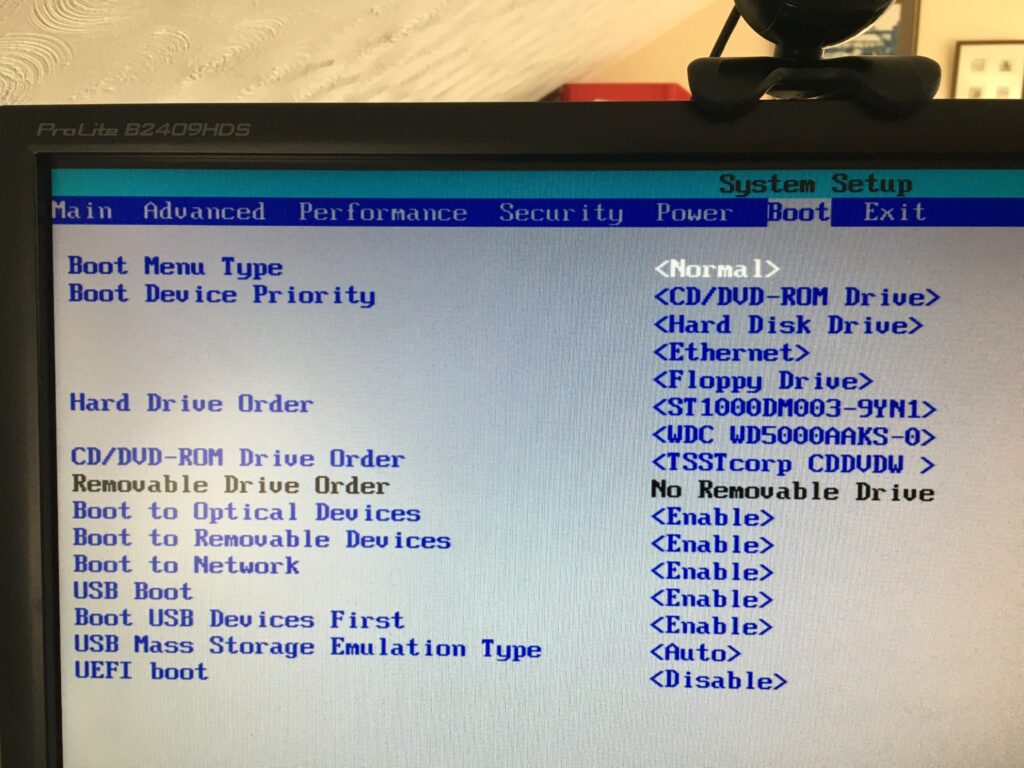
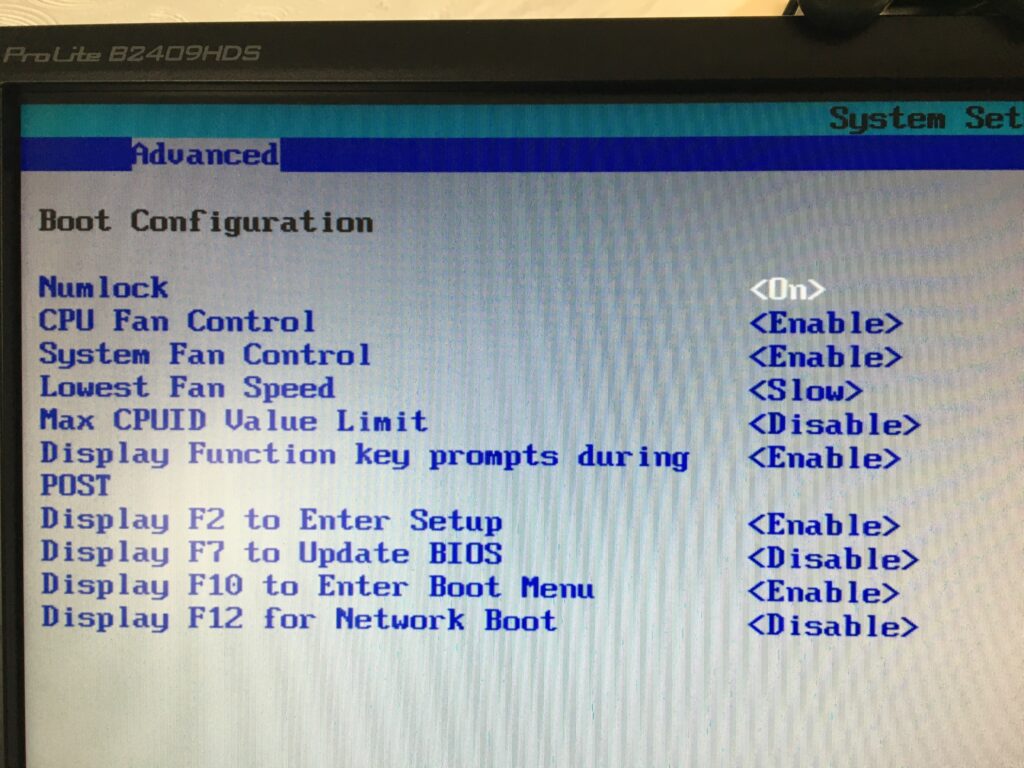
You should look at these settings in your BIOS on a PC. Often the key to press when you want to access BIOS settings is F2.
Getting the Boot order correct, and making sure that USB Boot is enabled.
From the BIOS settings menu just make sure that Boot USB Devices First is enabled. If you have the USB Device inserted, it will also appear in this list. You could move it to the top of the list, but of course it will disappear from this list when you take it out – that’s why Boot USB Devices First is important. You could also Disable the Boot to Network option.
Making sure you can Boot from your USB device
From the same F2 BIOS Settings menu you should make sure that F10 is enabled (or whatever key is designated to Enter Boot Menu) and F12 is disabled as you don’t want to boot from the Network at this time. [You can always enable it at a later date, in the unlikely event this ever becomes a requirement.]
Back in 2003 I was involved in a government project, The National Grid for Learning-Cymru. Our brief was to improve the use of I.T. in schools right across Wales. One of our main activities was to create a fantastic online learning repository, creating websites that were interactive and worked well on an interactive whiteboard. To that end, it felt as though every Monday morning, we were asked to leave our brains on the table whist our bosses sucked out all of our ideas. Seriously though, we actually created some quality material.
Sadly, most pages were created using a technology called Flash. Back in 2003, Flash was indeed the bees knees. However, as the years have gone by, Flash has fallen out of fashion. It is to be taken off line at the end of the year and along with it, we will lose so much of the N.G.F.L.-Cymru material.
During lockdown, I’ve been trying to ‘hoover up’ some of my best websites/ I’ve tried to re-present them for posterity in a non-Flash form. I’ll be honest, they aren’t a patch on the Flash versions but at least I have something to keep the memory alive.
One of my best efforts was Frankenstein’s Model Theatre. This was a modern take on the old Victorian toy. Using it, you could create a play involving four moveable characters complete with special effects and sound effects.
I’ve created a non-Flash version of the theatre here.
Yes, I enjoyed reading your account. Like you, I’ve enjoyed “constructing” stories around events in my ancestor’s lives – filling-in the gaps so-to-speak. Factumentary you might call it, or Life Stories.
Hi,
After being an enthusiastic Amazon Echo user for the past year, I have to admit that I’m simply not enjoying her company so much any more.
As an enthusiastic user, I took out an extra subscription with Amazon so that I could upload my music to their servers so that I could access my CD collection through the devices. Recently I’ve had an email from them to tell me that they are discontinuing that service. Hours of wasted effort.
It was kind of cool asking Alexa to play certain tracks and certain tunes however once you realised that your success rate was only about 40% my enthusiasm soon waned.
I took out the extra Amazon Prime Unlimited subscription for a while so that I could listen to just about any track ever recorded. Thing is; and you old folks might relate to this ….trying to think of something inspiring out of fresh air isn’t all that easy any more. It is far easier to see your albums displayed on a tablet screen, offering some suggestions as to what you might like to listen to.
However, the most infuriating problem that I experienced was what I’ll call “The Tuesday Phenomenon.” My wife babysits on Tuesdays. Theoretically that gives me free time with my music collection. Often, on a Tuesday I’d ask Alexa to play a certain album only to find that it had lost network connection. It would then take about 30-45 minutes to get back into the groove by which time I’d often need some calming music to tend to my fraying nerves.
Amazon Echo. Great for asking for spellings. Pretty good at sums. Turning lights on and off is really cool but the music player simply isn’t anything but frustrating.