A few weeks ago during one of our regular meetings, somebody brought up the topic of Apple News+. One of the features of the service is that it gives you access to over 400 magazines to peruse at your hearts content. This made me sit up and listen, because I knew of a service called Pressreader. This provides access to 7,000 newspapers and magazines from more than 120 countries in over 60 languages, all for free.
How do you access this service? It might involve a trip to your local library.
First, you need a library card. You might already have one, but to make this work, you need to ask your librarian for a P.I.N. number. Both are free. Make sure you keep your details of your library card and P.I.N. You will need them to sign up to the service and you really don’t want to suffer from a nasty case of Passworditis do you.
Next, go to pressreader.com and sign up. You’ll be asked to select your local library…probably Cardiff. You’ll also be asked for your library card number and P.I.N. number. And that is it. You can then browse the catalogue, check the news in the latest newspapers or find absolutely anything from their huge range of magazines….and I’ll say this again, all for free through your local library membership.
If you’re new to the world of on-line reading, you might want to check on another service, free through your library card membership. Visit libbyapp.com
This is a more general library service, giving you access to thousands of electronic books and audiobooks which you can borrow, again, all for free; all part of the library service.
Probably best to load the libby app onto your laptop, tablet or wherever you think you’d enjoy sitting back to read your recently borrowed Agatha Christie
I had an Apple MacBook Air. I bought it early in the lockdown year 2020. At the time, I bought the base model with just 256 Gb of storage. I decided that I could probably get around that limitation simply by storing things in my Apple Cloud. For a while, that appeared to work. Then a few weeks ago I decided to find out how much actual storage I had left available. I’d actually used nearly 200 Gb.
It was then that I discovered that Apple operated a trade in scheme. It works like this. You log on to the Trade In website and provide the details of your device; serial number and the state of its general condition. The then give you an indication of the estimated value. I was offered £275. Considering that I’d made good use of this laptop for about five years, I felt that was a good deal.
Problem was, until then, I really hadn’t thought of getting a new computer. Perhaps about two years in the future was my thinking. However, if my laptop was worth £275 now, I really didn’t think it would be worth that much in two years time.
I’d heard so many good things about the Apple Mac Mini that I decided that this might be for me. It dawned on me that although I’d bought a laptop five years ago, I had never ever taken it out. I had it connected to a large monitor. I also had Apple bluetooth keyboard and mouse. I really didn’t need a laptop.
You start the Trade-In process by filling in an on-line form. Basically, you get asked about the device’s condition. Any scratches, bumps or bulges, that sort of thing. From this, you get awarded a valuation. If you accept, in a few days time, you receive a delivery; a box to pack your device and some instructions on how to proceed.
This isn’t just limited to Apple devices. They accept other brands but they only pay out in the form of an Apple gift card.
I had to create a back-up using something called Time Machine. This, supposedly creates a file containing all of your documents and settings from your old machine. This can then be plugged in to your new machine, which will then set itself up just like your old machine. Well. We’ll see.
I then had to re-set my laptop to day one, thus deleting everything from my old laptop. After that, I packed up the laptop using the provided box and took it to the post office.
I’ll be honest, I found this process a bit emotional. Watching the laptop delete all of the data, then handing it over to the post office, it was a bit like taking an old dog to the vet for the last time. But, hey ho, we must move on.
I made one mistake. Apple devices have a feature called Find My. This is a security device. If your device is lost or stollen, Find My helps you to locate it. It has to be turned off before you start the procedure. They can’t proceed until it is turned off. Eventually I found that you could turn off this feature ‘in the cloud’.
Be prepared for a wait. This isn’t a fast process. It appeared to me that every step along the journey takes 3-5 days. 3-5 days to receive your box. 3-5 days for your device to be delivered to Apple. 3-5 days for them to confirm your valuation, 3-5 days to receive your Apple gift card. Only then will you be able to order your new device.
I suppose you need to think long and hard before considering this service. You could find yourself without your computer for three to four weeks. Also, I estimate that I’m going to get about 25%-30% of my original purchase. Maybe I should have delayed or found another way to fund my new computer. However, I console myself by looking at YouTube videos that tell me that the new Mac Mini is indeed the best thing since sliced bread.
Remember the digital chip that was inserted into the Covid 19 vaccine….the one that would kick into action at some unspecified date and force you to do things that you might not have considered before? Mine forces me to buy tech products. That digital chip even knows my P.I.N. number. An Apple Watch was one of my most recent purchases but I might say that I’m absolutely delighted with the device. It looks after me; a bit like having Jiminy Cricket on my shoulder. It does things for me that are really useful, potentially even vital.
It has a feature called Fall Detection. Those who know me will know that I’ve had a few falls over the last few years. I’ve sustained quite a few injuries including three broken ribs once. Believe me, falling over is no fun. Luckily, every time it has happened there have been kind Samaritans around, but what if I took a tumble whilst on a park walk, where there was nobody around? That is where Fall Detection comes in. The watch will know when you’ve fallen over. On the screen it will show a message, “You’ve fallen over. Are you O.K.?” You then have one minute to respond to that message. If you don’t respond within one minute, it will send for an ambulance, sending it to the GPS location provided by your watch. Here are a couple of videos. https://youtu.be/yZgzAhBa7Kc?si=2eTcmhPMFsJgIpKi. And https://youtu.be/OWasOBv15qk?si=zjaMW5gnKDcX8j2H
Medical I.D. You can tell your phone and your watch your ailment and prescription details. Now, I know we should be wary of giving computers too much sensitive information but as far as I know, this information can be gained from my watch by medical professionals in times of trouble only.
Health monitoring. The watch can give you all sorts of information about your health. This includes a step counter, sleep monitor, it can even monitor your walking steadiness. It is even said that it can detect atrial fibrillation although you might want to check that out yourself. The more expensive models have blood oxygen and ECG apps included. I went for the cheapest model, the SE second generation. (£219 at the moment). I think that is sufficient for my personal level of hypochondria.
A torch. Nifty ! There are a couple of ways to get the screen to light up, giving you roughly the illumination level of a candle. Sufficient to help you find the toilet during night time excursions in unfamiliar hotel rooms. Use Siri (yes, the watch has Siri) and simply say ’Torch on’, or for Harry Potter fans, say ‘Lumos”. To switch off, simply place your hand over the watch face.
Answer the phone. If your phone is in another room and rings, you can accept the call from your watch, speaking and listening to your watch. You can also send text messages to your watch using Siri.
Alarm clock / timer. Simply ask Siri to set an alarm. It wakes you with vibrations on your wrist. This is actually a really pleasant way to be woken up.
Things to be aware of.
The Apple Watch works in conjunction with your iPhone. It won’t do much on its own.
I haven’t looked in to this, but I’m pretty sure that there are alternatives in the Android world that will do pretty much the same thing.
There are other, far cheaper brands of Smart Watch available. I tried a £40 model but I had to stop using it because it made my wrist itch.
Oh, and just one more thing, especially for the gentlemen in the group.
Just a quick word of warning. I originally wrote this article on my old laptop. I wiped that machine without taking one last look to see whether there was anything of value stored on its drive. Lesson learned. That’s why I’m writing this out again.
You probably know this, but just in case you don’t, if you love reading, there is a wealth of reading material available on-line which can be read on a desk-top, lap-top, tablet or mobile phone. This is what you do.
Ebooks and Audiobooks from Cardiff Library.
This is not straightforward, but once you have the system up and running, everything works like a dream.
You need a library membership card. Make a note of your membership number.
You also need to ask the library to issue you with a PIN number.
On your tablet or phone, download the Borrowbox app. This will be in the App Store for iPads and in the Google Play Store for Android devices.
Open the app and login, providing your account number and PIN number. You’ll only have to do this once.
You can then borrow eBooks and Audio Books for free. You can also reserve real books for collection. You can keep the borrowed eBook or Audio Book for up to three weeks. If you forget to return it, your tablet will do that automatically.
Magazines
This is a very similar procedure. You need the same account number and PIN number, but a different application.
It used to be that you needed the RB Digital app but it appears that things have changed. You now need an app called Libby (from April 30th.) RB Digital app goes offline on April 30th.
It is being replaced by a new app called Libby.
It is already available and very easy to use.
It also appears to be able to find ebooks as well as magazines:- a one-stop shop.
The home page is simply a joy:- far more inviting than either Borrowbox or RB Digital.What if you want to buy reading material?
Things you should know.
Kindle ebooks will play on Kindle devices, on any type of tablet or mobile phone.
You can also read Kindle content on a desktop or laptop by using the Kindle Reader application.
Is it possible to buy and read Kindle content without purchasing a device?
Things you should know.
As far as I know, Apple ebooks will only play on Apple devices.
Well, actually it might be possible but it doesn’t look easy.Another thing you should know.
Audio books are available for Kindle, P.C.s, laptops and non-Apple devices.
You have to buy a subscription for £7.99 per month but then have access to their whole library.
Another thing you should know. Apple audio books are available individually.
Just one more thing you should know. You usually have to pay for Kindle classic novels. Apple classic novels are free.
Soon after retiring and joining U3A I was asked to prepare something to show people how to use computers to research their family tree. Well, that really sparked an interest. I started researching my grandfather, George Henry Davies (Harry). He was a colliery farrier from Blaenllechau in the Rhondda Valley. I was two years old when he died. Sadly, I have no memories of him.
As a younger man, he joined the army in 1915. After a very short period in France, he was shipped to Salonika in Greece. These days, not many people remember that any fighting went on there. Harry stayed in Salonika until early 1918.
During 2020 the whole world changed beyond all measure as countries around the globe suffered the effects of the Covid 19 pandemic. For many, including myself, had to endure many months in lockdown with limited opportunity to go out and socialise. My music making with my recorder group, Morris dancers and folk sessions all came to a grinding halt. For many months I simply didn’t feel like playing any music at all. Then a friend introduced me to the idea of making Acapella videos .
Using this system it is possible to create little arrangements with myself playing all of the parts.
Around the same time I learned that the Imperial War Museum had a set of pantomimes from the First World War Salonika front. These pantomimes were performed by a party of traveling ambulance men, the 85th Field Ambulance. With the help of the Salonika Campaign Society, I’ve managed to get scanned images of the three pantomimes, Dick Whittington, Bluebeard, and Aladdin in Macedonia. They provide a strange and unique insight into the lives of soldiers posted to this long-forgotten battlefront.
At the moment, I’m trying to put together some of those Acapella videos, trying to breathe new life into those old tunes. I’m keying in each note of the tunes into Musescore software. This must be a bit like following a knitting pattern stitch by stitch with no idea what the finished item will ever look like. I’ve created some musical videos with the help of Apple iMovie and Acapella :- Pitch Perfect.
Initially, I thought I’d try to learn one or two of the tunes. I couldn’t be certain that my grandfather Harry had ever attended any of these pantomimes but after a short period of study, I feel that he probably did.
The Macedonia front was quite unlike the experience of the Western Front in France. During Summer, it was fiercely hot but Winter brought freezing conditions and snow. For most of the time, the battle lines were fairly static. There was little chance of any entertainment. Only lucky soldiers managed to visit the town of Salonika. Curiously, soldiers developed a strange form of entertainment:- Racing tortoises. Well, that was impossible during Winter as the tortoises would be in hibernation.
Also, it appears that these pantomimes were incredibly popular, frequently out-performing pantomime productions staged at Drury Lane.
Let’s imagine then that grandfather Harry did manage to get a ticket for the pantomime. Imagine him trudging through the snow to a small barn, nicknamed The Kopriva Palace Theatre. We’ll take a seat beside him and enjoy some of the tunes that he would have enjoyed all those years ago.
I’ve finished three videos of songs from Music of Macedonia. You can see them here.
I experienced a strange coincidence when I was looking through the music from Aladdin in Macedonia. Look at the name of the composer. Not my grandfather, G.H. Davies but a strange coincidence, another G.H. Davies.
It has to be said that I am a bit of a gadget geek. I was actually quite an early adopter of the Amazon Echo voice activated assistant. I bought a pair of them a couple of years ago and have since added some lights to my smart home. All in all, I’ve been delighted with the system although to be honest, I’ve sometimes felt that I wasn’t getting the experience quite right. Maybe I was missing something.
About six months into The Great Lockdown I noticed that Amazon had a special offer on the Amazon Echo Show 8; just £69.99 (it is now £89.99 so keep an eye on the price). It really is sinfully easy to click on the “Buy Now” button. Here’s what I’ve discovered.
First of all, I believe that you can only get the full value of the Echo experience if you are an Amazon Prime subscriber. I’ll tell you more about that later.
The Amazon Echo is a bit like a voice activated tablet screen. You can set it up to :-
Show a continuous slideshow of your photographs, cycling through your snaps at random.
Play your music. You can ask Alexa for a particular album, artist or genre of music. You can also get her to play your favourite radio station. You can control the volume with your voice.
Show recipes, with video and audio hints as you go along. Similarly, it can show exercise routines.
Show Youtube videos, Iplayer and news channels.
Show Amazon Prime movies.
Make phone and video calls.
Play a range of games and quizzes.
AND, it does all of this through voice control. It really is just like having your own personal assistant or butler even. You simply use voice commands like, “Alexa, phone Betty”, or “Alexa, send a text to Betty,” or “Alexa, play songs by Val Doonican.”
Setting up the device might be a bit tricky. You will need an Amazon account and you will probably need The Alexa app running on a phone or tablet. If you were setting it up for somebody with limited technical skills, you could use a friend’s phone or tablet. There is a video here to show you how to do this.
Now, since The Great Lockdown started, I’ve become a big fan of Slow Movies, It’s hard to explain this concept. Basically, it could be video taken of a view, or of a scenic route. Nothing happens but for me, they provide me with a link back to The Before Time. Alexa Show will show movies from the Prime catalogue. Besides a huge choice of regular movies and T.V.shows, there are plenty of Slow Movies available. Try one of my favourites, “Morning Jazz at the Coffee Shop,” takes me back to enjoying a cappuccino at Coffee #1 in Whitchurch.
Now, the Amazon Echo Show comes in three sizes; just like Goldilocks’ bears. The 5 inch would look great on your bedside cabinet. I have the 8 inch in my kitchen. There is a 10 inch model that would probably look great in your living room.
It really is a bit like having one of those Swiss Army knives, the ones that do everything. Besides being a digital photo frame, it plays music or radio, shows movies, acts as a clock and calendar, provides weather forecasts, does sums, tells you spellings, gives you a cheery Good Morning greeting, acts as a timer or reminder turns lights on or off….I really could go on and on.
Now, as I said earlier, you probably won’t get much out of the device unless you have Amazon Prime subscription. Basically, for £79 per year, you get free next day (or fast ) delivery on many of the Amazon products. I’ve ordered something at 10 p.m. on a Saturday and it was delivered at 10 a.m. the next day. You also get access to a huge catalogue of music and videos. You might have to pay extra for some of the newly released videos but believe me, there is plenty of choice for free. It provides unlimited storage space for your photographs. You upload photographs to your storage area. You can then choose the ones that you would like to see on your Echo Show. Find out more about Prime here.
Those who know me, know that I really am a bit of a sucker when it comes to new gadgets. Believe me though, this one does something that most of my other gadgets fail to do quickly, easily and with minimum hassle. This one regularly makes me smile.
It is a dual-boot system. It has both Windows and Linux Ubuntu installed on it. When I turn it on, it asks me at boot-up, whether I want to use Windows or Ubuntu. I hardly ever use Windows because I find Ubuntu so much better. However, for this, I’m using Windows because I know that most of the afternoon Zoom group use Windows. I’m using Windows this afternoon so I can see how the Windows installation of Linux works.
Windows is horrible.
So far I’ve had five pop-ups and two programs starting without me wanting them to start. Added to that, with Windows, this laptop takes ages to start.
You don’t get those sort of problems with Linux.
You will also not need anti-virus software as Linux doesn’t appear to get viruses.
Now, you might be interested in taking a look at Linux from a purely academic standpoint; something new to learn during lockdown.
OR … you might have an old computer lying around; one that you’d like to drag back from the grave.
So let’s get started
Linux is an operating system. Windows and MacOS are also operating systems. An operating system is the program that actually makes your computer work.
To proceed, you’ll need to do the following … and it would be best if you did this before next Thursday’s meeting because some of the processes take a bit of time, otherwise you’ll just have to accept being an observer.
Take a look at the computer that you’ll be trying to revive – but remember you can run Linux from the USB drive without making changes to your computer, so it could be any machine. Make sure it has a USB drive. You’ll need an empty USB pen drive doohicky, at least 4Gb in size. Also, the computer that you intend targetting, it would be best to be a 64-bit system. Google your computer’s make and model to find out whether it is 64-bit.
This is for Ubuntu Linux 20.04 LTS. LTS (Long-term support) means that the software will be supported for 5 years. A new version of Ubuntu comes out every April and every two years you have a new LTS release. This page also tells you the minimum requirements that you need on your computer for Ubuntu to run well. Incidentally Ubuntu is a South African enterprise. It is totally free to download, install and use. In fact, everything in the Linux world is totally free. Linux comes in many different flavours e.g. Mint, Red Hat, Fedora … you chose the flavour that best suits your needs. My opinion; they are all very similar. Ubuntu is probably the easiest to get to know and with the best support. It will take a while to download as it is a big file … about one hour in my house but I have Virgin cable.
If you only have a 32-bit system there is another Linux operating system that works well on older 32-bit computers. It is called Bodhi Linux. Download the image file here. https://www.bodhilinux.com/download/ download the legacy version.
Once Ubuntu has finished downloading, don’t do anything with it. Don’t double click on it or try to get it to run. Just make a note of where you’ve stored it.
Now, you can’t just put the file that you’ve downloaded onto your USB drive. It is just a bit more tricky than that. You’ll need one more piece of software. It will transfer the Ubuntu file you’ve downloaded onto your USB drive and create a bootable disk image. These pages will give you a run down on what to do next on a Windows computer.
You will need a piece of software called Rufus (free, open-source) to create the bootable disk image. Here’s the link to get it.
You should Download AND install Rufus 3.11 1.1Mb onto your machine.
Now, on Thursday afternoon, in order to proceed, you will need the Ubuntu file stored in your computer and have Rufus downloaded and installed. We’ll talk you through the rest of the procedure over Zoom but rest assured, you’ve already done an awful lot.
Please note. All the above assumes you will be working on the target machine; BUT you could prepare the USB pen drive on one machine and then apply it to another. For instance David prepared his Ubuntu installs on a Mac, with the intention of targeting an old Windows machine. It’s just important to know what your target machine is, that it’s 32-bit, or preferably 64-bit.
Things you need to understand.
Once you have Ubuntu on your USB pen drive you can:-
Run Ubuntu on your computer just to see what it is like. This won’t make any changes to your computer. After you’ve taken a look around the system you can just shut down, pull out the USB drive and re-start. All will be just as it was before.
Make a full Ubuntu install. This will completely change your computer to a Ubuntu device. There will be no turning back from this option. However, you will have use of all of the space on the hard-drive.
You can choose a dual-boot installation. This will partition your drive into two sections. You can keep Windows on one section and Install Ubuntu on the other. Although this sounds complicated, it really isn’t … you just need to make a choice on the size of the partitions that you’ll need. If you chose this, every time the computer starts you’ll be asked whether you want to start Windows or Ubuntu.
Other things to consider.
You can get Windows programs to run on a Linux machine but this is a bit of a black art and beyond the scope of this project.
However, Ubuntu comes with quite a few pieces of software pre-installed including Libre Office. This is very similar to Microsoft Office. You should know though that when you create a document in Libre Office, you can choose to save it in Microsoft Office format and a Windows computer will be able to read the document. Similarly Libre Office will open Microsoft Office files seamlessly.
One of the pre-installed programs is called Synaptic. This is a bit like the app store on many mobile phones. You can find oodles of pieces of software within Synaptic, all totally free.
One last thing to consider.
Both myself and David have successfully undertaken these procedures and everything worked just fine. However, please realise that if anything does go wrong then you really should be prepared to take the responsibility yourself. We can’t really be held responsible for the vagaries of a variety of computer systems. However, usually just preparing the Disk Image on the USB stick and trying again is usually quite successful. All I can say is that many people have installed Ubuntu. I’ve just checked the website to find out how many Ubuntu users there are. It was quite refreshing to learn that Canonical; Ubuntu’s parent company do not harvest that sort of data. A rough estimate is that 1-2% of all of the computers in use world wide use some sort of Linux installation.
Addendum. A note on Boot Order for PC-folk and your BIOS
You’ve got your USB install drive; you’ve got a PC; the only “tricky” bit left for you is to change the boot order of your PC. By default the machine will look to boot from an internal hard drive, but it doesn’t have to. You want it to start from your USB drive. So read this to see how to change the boot order.
If there’s no bootable USB drive in your machine it doesn’t matter; the boot sequence just looks for the next drive it could boot from – usually the internal hard drive. That’s why on some BIOS you’ll see the CD/DVD drive as first in the list as that’s where (traditionally) you would have installed/upgraded your Windows from – before the internet! Before that it was the floppy drive (a: or b:) – remember that; and that explains why the late-comer the hard-drive is always labelled c: or later, d: etc.
Of course on the Mac, it’s much easier , you just have to keep the Alt/Opt depressed as you boot-up and then select the boot device 😉
Second Addendum. Having problem with Booting your USB disk?
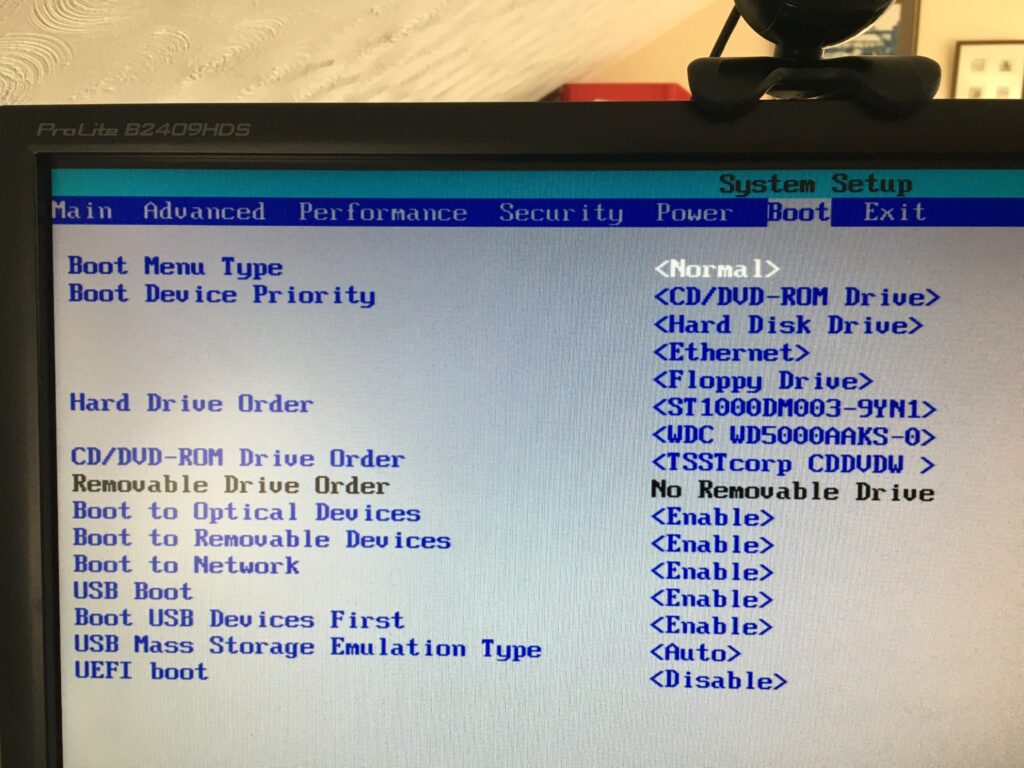
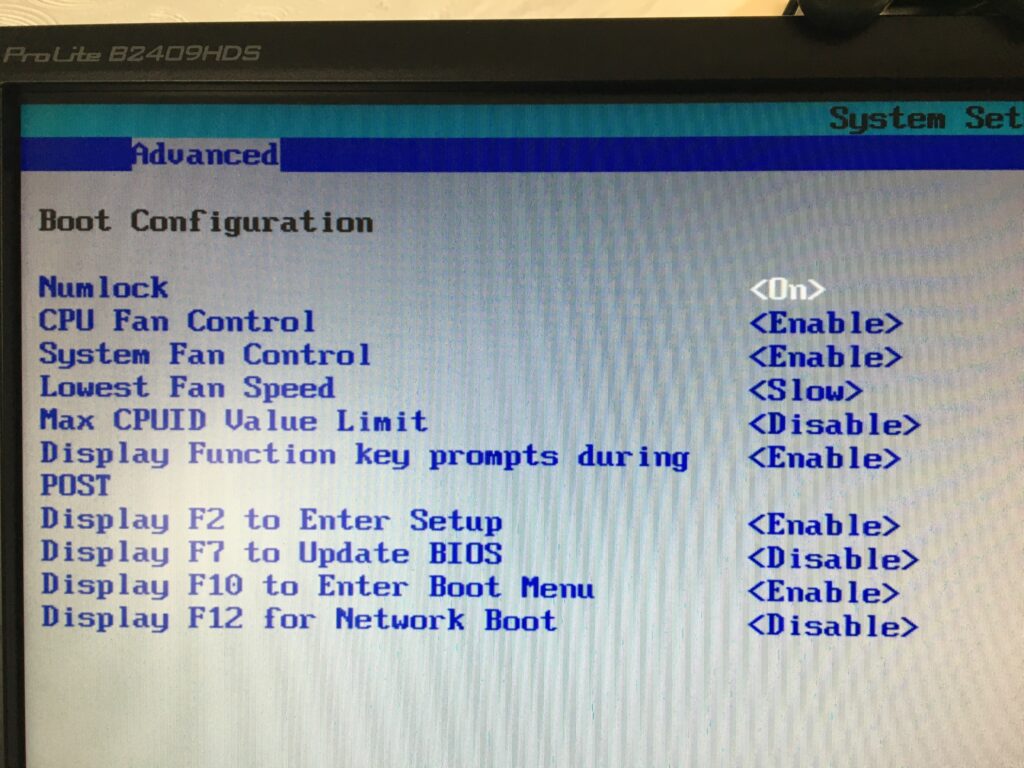
You should look at these settings in your BIOS on a PC. Often the key to press when you want to access BIOS settings is F2.
Getting the Boot order correct, and making sure that USB Boot is enabled.
From the BIOS settings menu just make sure that Boot USB Devices First is enabled. If you have the USB Device inserted, it will also appear in this list. You could move it to the top of the list, but of course it will disappear from this list when you take it out – that’s why Boot USB Devices First is important. You could also Disable the Boot to Network option.
Making sure you can Boot from your USB device
From the same F2 BIOS Settings menu you should make sure that F10 is enabled (or whatever key is designated to Enter Boot Menu) and F12 is disabled as you don’t want to boot from the Network at this time. [You can always enable it at a later date, in the unlikely event this ever becomes a requirement.]
Back in 2003 I was involved in a government project, The National Grid for Learning-Cymru. Our brief was to improve the use of I.T. in schools right across Wales. One of our main activities was to create a fantastic online learning repository, creating websites that were interactive and worked well on an interactive whiteboard. To that end, it felt as though every Monday morning, we were asked to leave our brains on the table whist our bosses sucked out all of our ideas. Seriously though, we actually created some quality material.
Sadly, most pages were created using a technology called Flash. Back in 2003, Flash was indeed the bees knees. However, as the years have gone by, Flash has fallen out of fashion. It is to be taken off line at the end of the year and along with it, we will lose so much of the N.G.F.L.-Cymru material.
During lockdown, I’ve been trying to ‘hoover up’ some of my best websites/ I’ve tried to re-present them for posterity in a non-Flash form. I’ll be honest, they aren’t a patch on the Flash versions but at least I have something to keep the memory alive.
One of my best efforts was Frankenstein’s Model Theatre. This was a modern take on the old Victorian toy. Using it, you could create a play involving four moveable characters complete with special effects and sound effects.
I’ve created a non-Flash version of the theatre here.
Hi,
After being an enthusiastic Amazon Echo user for the past year, I have to admit that I’m simply not enjoying her company so much any more.
As an enthusiastic user, I took out an extra subscription with Amazon so that I could upload my music to their servers so that I could access my CD collection through the devices. Recently I’ve had an email from them to tell me that they are discontinuing that service. Hours of wasted effort.
It was kind of cool asking Alexa to play certain tracks and certain tunes however once you realised that your success rate was only about 40% my enthusiasm soon waned.
I took out the extra Amazon Prime Unlimited subscription for a while so that I could listen to just about any track ever recorded. Thing is; and you old folks might relate to this ….trying to think of something inspiring out of fresh air isn’t all that easy any more. It is far easier to see your albums displayed on a tablet screen, offering some suggestions as to what you might like to listen to.
However, the most infuriating problem that I experienced was what I’ll call “The Tuesday Phenomenon.” My wife babysits on Tuesdays. Theoretically that gives me free time with my music collection. Often, on a Tuesday I’d ask Alexa to play a certain album only to find that it had lost network connection. It would then take about 30-45 minutes to get back into the groove by which time I’d often need some calming music to tend to my fraying nerves.
Amazon Echo. Great for asking for spellings. Pretty good at sums. Turning lights on and off is really cool but the music player simply isn’t anything but frustrating.