I’ve just gone through the users registered to access the website and have de-activated a few members who haven’t accessed the website in the last 12 months. If you are one of those and wish to be re-activated just drop us a line. All members of Cardiff u3a are able to access the website. If you want to read, or indeed contribute, items please get in touch quoting your membership number.
I’ve also reviewed the status of members of Forums and Topics, I’ve changed a couple of members from Moderator to Participant, and added a couple of new Moderators. The difference in status is academic really. You can all add Topics and Reply to Topics.
As an undergraduate I’d never encountered computers so a new world opened up when I went to America as a postgrad in 1965. In my first term in the Geography Department at Northwestern University – in a northern suburb of Chicago – my supervisor decided that I should do a computing course in the Civil Engineering Department. He obviously didn’t realise that it was intended for postgrads who already had a ‘hard science’ degree.The course concentrated on teaching postgrads to write programmes in machine language – Compass – for a CDC 3400 mainframe computer (not an IBM machine in sight). I’d never heard of Fortran before so didn’t know that I was writing something that Fortran compiled into a form – in this case Compass – which the computer could use.
My first test: writing a program to find the maximum value of a set of numbers.However, reading in the numbers and printing out the results had to be done using Fortran, so I learned things ‘in the right order’ – the computer would ‘understand’ me straightaway. Although the other postgrads had already learned to use Fortranthey then had ‘to progress’ to Compass.
I bought an excellent teach yourself book on Fortran and was introduced to the world of ‘READ’, ‘DIMENSION’, ‘DO’ loopand ‘GO TO’ statements! Just as important, Margaret, the wife of one of the other Geography postgrads from Grimsby, was a computer whizz kid.
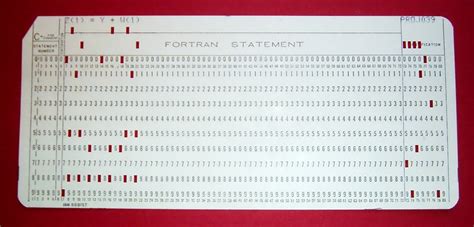
Like most postgrads at the time I had to prepare my own punched cards, a tedious process as you could enter up to 80 characters per card. And one typing error meant redoing the whole card. The Campus Computing Centre was a 10-minute walk away. I’d hand the deck of cards in and hope they were all in the right order and that there wasn’t a single typing error. Otherwise, when collecting results several hours later or the next day I just found a terse message – ‘input error 23 ’ or pure gobbledegook because I’d got the order of symbols wrong – as Margaret put it – the machine is trying ‘to obey your data’. Still, it was very satisfying to find that my programme (eventually) worked and gave the right answer. It seems amazing to me now what results you got from a mainframe machine with a memory capacity of just 196 kilobytes – about 20% of a Megabyte.
After that, I never looked back, progressing to working with two American postgrads to write a programme simulating average queue lengths of traffic at a busy crossroads. It particularly makes me nostalgic to remember working with these two other guys – incredibly friendly from the outset, almost as if they’d known you all their lives, full of ‘get up and go’, not worried about seeming over-enthusiastic. Not at all like the much more reserved British – not better, but very different.
The first computer Cathy and I had at home was a Tandon 286 desktop with a 20Mb hard disc – not a bad storage size for the time and, of course, ‘IBM compatible’. I think it cost around £1000.00 which was pretty expensive for the time – bought from a dealership in Slough – but worth every penny because we were’t supplied with computers at work until many years later. At least the computer techies in the Geography Department were very helpful if anything went wrong – I think they liked my enthusiasm.
In December 2019 we bought our first Google Nest Mini. It was just a fun experiment but we enjoyed using it to play music from Spotify (free version) and to get answers to random questions – from currency exchange rates, oven conversion temperatures, to bus times and weather forecasts. We later bought an additional Nest Mini for a different room and a Nest Hub so that we had a viewing touchscreen. Using the Google Home App the system was easy to set up and the devices straightforward to connect and use.
We then decided to invest in a Nest Hello Doorbell for security and to help with home deliveries. This was when things started to get more expensive. In addition to the actual device we needed to purchase a transformer and an indoor chime and, as far as we were concerned, to arrange installation by an electrician! The installation was completed several months ago and we are very pleased with the quality of both the video and audio, I am able to see and speak clearly to a visitor from my mobile phone (Android).
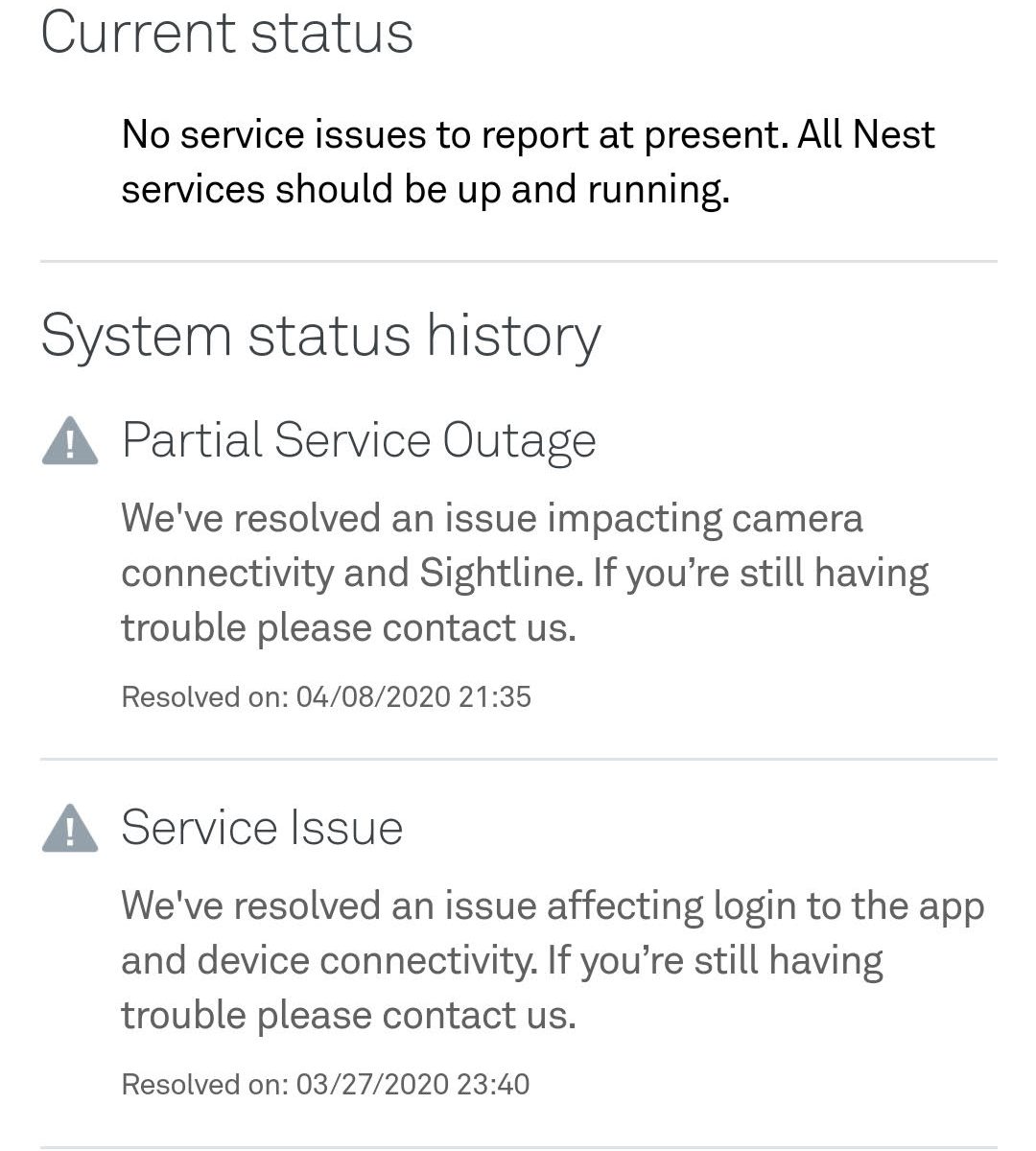
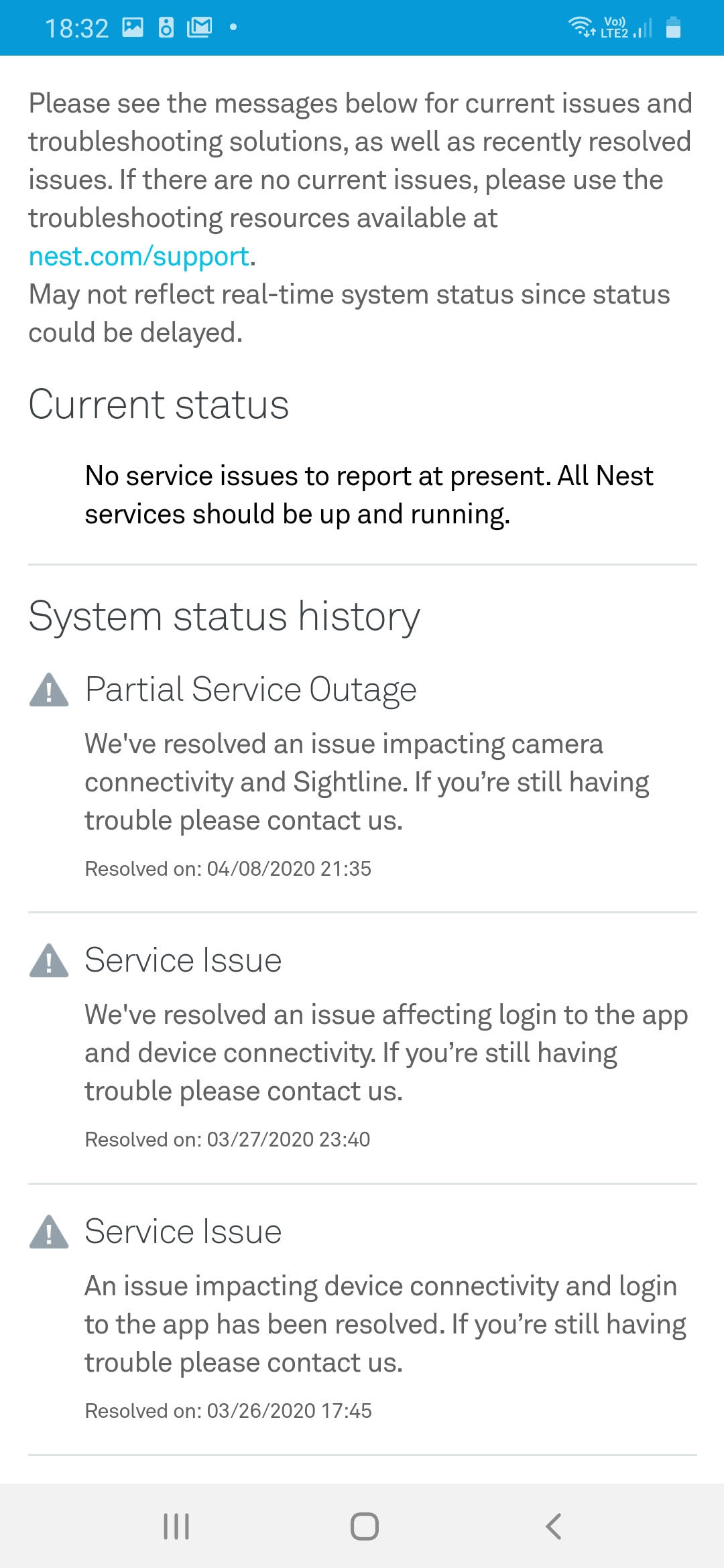
I recently was spending some time away from home (6 weeks) when suddenly and without warning all of the Google home devices stopped operating – including the video doorbell. The ‘Home’ I had set up on the Google Home App disappeared and I was unable to obtain any access to the system from my mobile phone. The Internet connection was tested and the devices rebooted but to no avail. I was unable to make any progress remotely and had to wait until I returned home to try to solve the problem. I was hoping that on my return and re-connection to the original WiFi router that the system would reset itself but this did not happen. The only way I could resolve the issue was to start from scratch – set up the original ‘Home’ and then one at a time individually reconnect all of the devices – including the video doorbell which involved re-scanning the original QR code – take care to keep this safe! Once I had reconnected I found messages from Google stating that there had been 2 system ‘outages’ on two consecutive days. It stated that the problems had now been resolved.
My main concern about this situation is that the doorbell was bought as a security device so that we could see people visiting our front door whilst we were away from home. Clearly we would like to have a way of resuming the alert and image recording facilities without having to return to the premises. In spite of research I have not yet resolved this issue. At present Google phone support is not available.
Below are a couple of screen shots I took. First this one …
Boot-up Is anyone having any difficulties in connecting to the Thought grazing website? Does anyone want to join the WhatsApp Group but is unsure how to do it? [Note for self … I need to add member to Contacts on my phone, then I can see them in WhatsApp to add them as a member of the Group. Easy when you know how … duh!]
Incidentally Paul has written a post detailing how you can add WhatsApp to a Tablet. Any other ideas? Visits. We agreed visits to the Barclays ‘Maker Space’ which Mario will arrange for us after Chrtistmas, and also a visit to the new BBC Centre after Easter.
Fred has offered to contact Brains and their new brewery at Cardiff Gate for a visit before Christmas. Any update? News and other issues raised Renee asked about opening compressed files in emails on an iPhone. We got some way to solving that one, but agreed to take it onboard as a conversation on the WhatsApp Group. I must confess to having forgotten about this – apologies.
I’ve switched-off Office 2011 already as my default app on my Mac for opening Microsoft Office files, it’s now the Apple programs that open these for me, but you could chose Open Office, Libre Office or Google Docs – they are all compatible with the .docx, and .xlsx file formats. I covered how to change the default apps to open a document for MacOS last time, here (taken from this link) are the instructions for doing the same in Windows 10 …
You may need to deal with different types of files on daily use. Windows 10 uses certain program to open certain types of files by default. For example, a text file with .txt extension will always open in a Notepad app. It works fine in general scenario for quickly accessing the file content. However, it will be annoying to open HTML file in Edge when you want to open it in Google Chrome installed on your PC. Good thing is that you can choose the default program to open a file type in Windows. In addition, you can also setup default applications like browsers for general use and select the different programs on need basis.
To skip to the place where you can assign a file extension to an application – scroll down to Point 4. Also note (as in Point 7) that Windows allows you to do things in more than one way – choose whichever one you feel comfortable with. Finally Point 9 allows you to change the default app to open the file by right-clicking on the filename – much the same way as I described for the Mac.
1. Setup Default Apps in Windows 10
Windows 10 offers a dedicated setting to setup default apps to open different files. Press “Win + I” shortcut keys and open Windows Settings app and click on the “Apps” option.
Windows App Settings
Select “Default apps” from the left sidebar. You will see a list of default apps assigned to open email, music, photos and web browser.
Windows Default Apps Settings
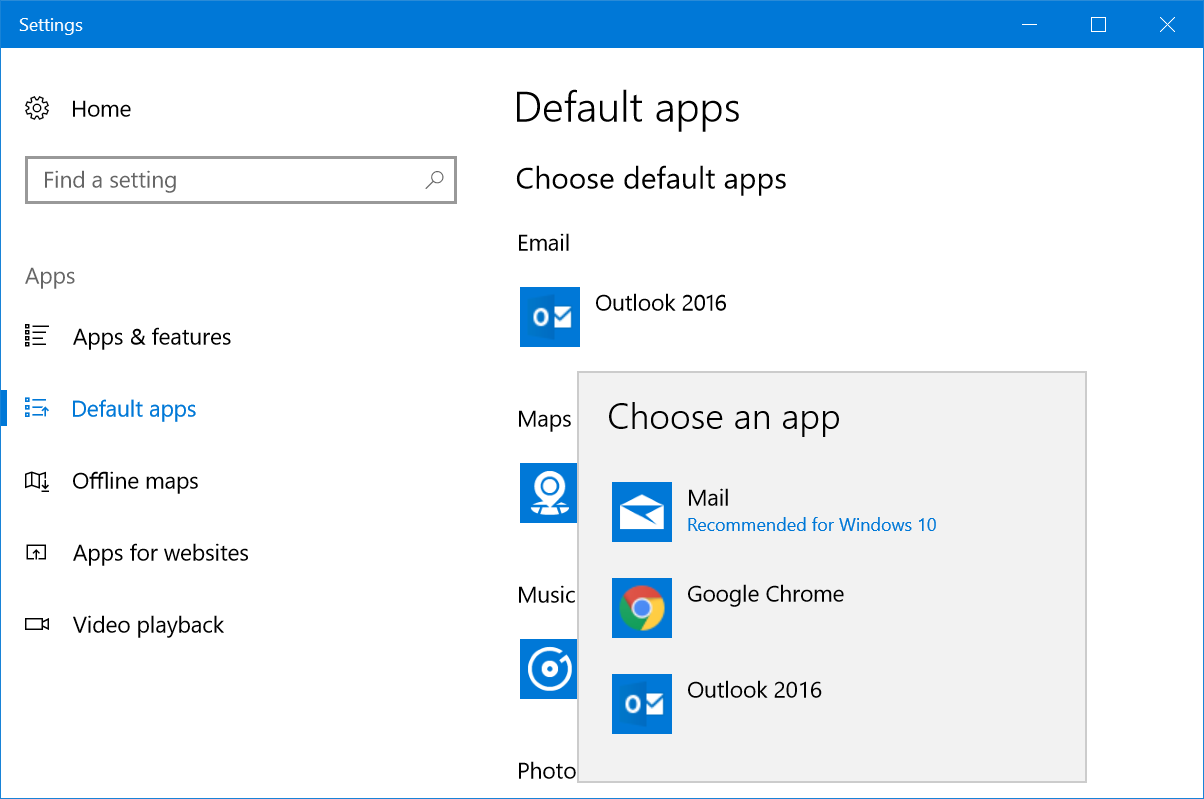
Click on any of the app to change the default settings. For example, you will see that Outlook 2016 has been set here as a default email client, however Windows 10 recommends using the Mail app. You can change the default Email client from Outlook 2016 to the Mail app. Click on Outlook 2016 and a popup will show all available email apps on your computer.
Change Default Email App
Select Mail app from the list and the default Email app will change immediately. However, should you want to change the web browser to Chrome or Firefox, Windows will push will push you to confirm the switch.
2. Additional Default Apps Settings
Scroll down the settings page to view additional options:
Reset
Assign app for file types
Setup apps for protocols
Set defaults by app
Resetting and Other Default Apps Settings
3. Resetting Default Apps to Recommended Apps
Windows 10 recommends apps like Mail for opening emails. If you have changed the default app settings, click on “Reset” button. This will help you to reset back the recommended apps as your default apps.
4. Choose Apps for File Types
Scroll down to the bottom of “Default apps” settings screen and click on the link on “Choose default apps by file type”. You will see a huge list of file extensions and the application you can use to open each file type. For example, the default app to open .pdf file is Microsoft Edge. However, you can click on it and change to Adobe Acrobat Reader.
Choose Apps for File Types
You will see a “Choose a default” option when there are no default apps available. This is a useful option to check and assign apps or install required apps to open a file type. So that each time you do not need to select or search the app.
5. Choose Default Apps by Protocol
Windows use many protocols to open specific files. For example, it uses the popular HTTP or HTTPS whenever you access a HTML webpages. It uses MailTo protocol for opening email messages. So, click on “Choose default apps by protocol” link if you want to set up default apps according to individual protocols. You can assign a new app when there are no default apps setup or change the existing app by clicking on it and choosing a new one.
Setup Apps Based on Protocols
6. Set Defaults by App
Windows 10 also allows you to set defaults for any installed apps on your computer. This feature is useful when you have multiple apps installed on your PC which can open same file types. Simple example is Firefox or Chrome which open HTML pages similar to Edge. Click on the “Set defaults by app” link and choose the app from the list. You will see a “Manage” button and click on it.
Set Defaults by Apps
On the next screen, you can assign the app to open supported file types.
File Types Supported by App
7. Accessing Default Apps from Control Panel
The problem with Windows operating system is that you can the same settings in different ways. Being said that, you could also access “Default apps” settings from Control Panel.
Paste this path on the address bar “Control Panel\Programs\Default Programs” and hit enter key.
You will see the “Default Programs” settings open from Control Panel like below.
Click on one of the following links to go the “Default apps” settings as explained above.
Set your default programs
Associate a file type or protocol with a program
Set program access and computer defaults
Default Programs Settings from Control Panel
8. Choosing Default App When Opening File
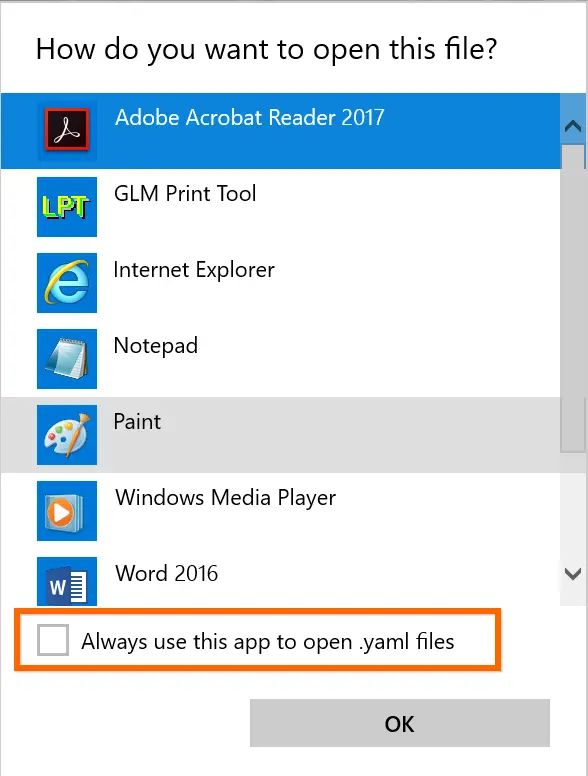
It is difficult to setup the default programs in advance when you do not have a specific file on your PC. For example, someone can send you a YAML file in email and Windows 10 will not have any default apps associated to open .yaml files.
When you have a file with no associated apps, Windows 10 will show the file with plain white file icon. Double click on the file and choose “Try an app on this PC”.
Double Click to Choose App
You will see list of apps that can help to open the file. Choose an app and click “OK” to open the file.
If you always want to open the file type with the selected app, then check the option “Always use this option to open .xxxx files”. Now that Windows will change, the file icon with the selected app icon file and always open the file with the selected apps. In this way, you can setup default apps when you received an unknown file type.
Set Default Apps
9. Change Default Apps
Finally, you may have another scenario wrongly assigned a default app to a file type. Do not worry! Right click on the file and you will see different content menu depending on the file type.
Click on “Open with…” option.
Select “More apps”.
Choose the app you want to change.
You can use different app for one time or check “Always use this app… option to change the default app.
Change Default App
On certain apps, the “Open with” menu will also show additional sub-menu items like below.
Sub Menu for Open With Option
Choose one of the available apps to open the file for one time with that app.
Select “Search the Store” to open Windows Store and search relevant apps to open the file.
Click “Choose another app” and choose another app that is not showing in the list. You can use the app for one time and set it as a default app.
Conclusion
Many times, you will receive unknown files from your family or friends and you cannot open in Windows 10 default apps. Now you know how to setup default apps, change them and search in Windows Store for relevant apps. Good luck!
Opening a Compressed File on a Smartphone
Renee asked about opening compressed files on her iPhone. I found this article which seems quite comprehensive. It would appear that a general purpose way of doing things is first to “share” the file to the Files application which is present on iOS after v.7. You can then do much more with the file once you’ve moved it out of the email application. A similar post for Android is to be found from this link. Email messages going to Spam Folder which are legitimate
This is a problematic issue. Generally there may be a number of levels of Spam intervention, and it’s not easy always to detect where the incorrect marking is going on.
Here is a lengthy article that explains how email is marked as Junk, and how to prevent it happening (so-called Whitelisting) for a number of eMail providers …
When emails arrive from <insert email address here> they may periodically be placed in your junk or spam folder by your email software. The information below describes how to stop this from happening. The first step is usually to add <insert email address here> to your email contact list (so they know you know us). Why you may be having email problems
The volume of Spam/Junk Mail/Bulk Mail nowadays has caused ALL email providers to now “filter” your emails on their mail server before they deliver them to you.
Unfortunately these filters tend to be very aggressive and are far from fool-proof. It’s very common for email filters to mistake legitimate email for junk, so emails you wanted to receive don’t get delivered to you. How your email providers filtering system works
When someone sends you an email, first it arrives at your email providers mail server (eg btinternet.com, yahoo.com, hotmail.com, gmail.com, msn.com, etc) where their system filters it by scanning it and checking it for spam.
If the email looks legitimate, they then deliver it to your inbox.
But, if their filter suspects that the email might be junk, it places it in a separate “junk” folder where you can go in later and review it to decide for yourself if you want to receive it or not.
Below are listed instructions on how to whitelist(allow emails) for the most popular types of email programs. For email programs that run on your PC as well (i.e. Outlook Express or Microsoft Outlook), please see your programs help files for adding <insert email address here> to your address book. Whitelist Instructions (alphabetically) BTInternet BT Internet is now operated by Yahoo Mail – you can go to this link to discover more if you still have your email service from BT supplied by Yahoo and follow the link “Marking emails as Spam or Not Spam”. If your service is supplied by their “new” email service – BT Mail – use this link. Follow the Safe Senders link on this page. Gmail For Gmail, I would suggest you look at this link. Hotmail:
Click the Options link, on the main menu tabs, then Safe List. Type: <insert email address here>in your Safe List. If you see a message that should not be in your Junk Mail folder, click ‘This is not Junk Mail’ to avoid having e-mail from the same source sent to the Junk Mail folder in the future. Apple iCloud
Manage junk mail using the online iCloud service. Click here for guidance
Mozilla Thunderbird
Initially, the automatic junk mail detection for incoming messages might not be very accurate and you should check your Junk folder to see whether e-mail has been mistakenly detected as junk. To prevent this from happening in the future, you need to mark e-mail as not junk. Do this by right-clicking on the e-mail and choose “Mark -< As Not Junk”. Outlook 2003
If the Junk E-Mail Filter accidentally catches mail from <insert email address here>, you can simply add the From address, <insert email address here>, to the Safe Senders list, and no future e-mail from this address will be inspected by the filter.
Yahoo! Mail (also BTInternet)
Yahoo mail filters work on the Yahoo server so your emails are filtered by YahooBEFORE they arrive at your computers email program. So, if you’ve looked inside the spam folder on your computer and the email is not there, it is most probably sitting in your other spam folder on the Yahoo server:
Open your Yahoo mailbox (http://www.mail.yahoo.com) or BTYahoo mailbox (http://www.bt.yahoo.com).
Click Mail Options.
Click Filters.
Click Add Filter.
In the top row, labelled ‘From header:’ make sure Contains is selected in the pull-down menu. Click in the text box next to that pull-down menu, then enter the address: <insert email address here>
At the bottom, where it says “Move the Message To:” select Inbox from the pull-down menu. Click the Add Filter button again.
If Alert has been filtered to your “bulk” folder, simply open the message and click on the “This is not Spam” link next to the “From” field.
Other providers:
If an obvious option is not available, try moving the message to your ‘inbox’ or forwarding the message to yourself.
If subsequent messages continues to be filtered, call or e-mail your ISP’s technical support and ask how you can be sure to receive all e-mails from <insert email address here>.
If you use a Web mail system or email application not listed above, the instructions for whitelisting our address will depend on the specific email program you are using.
If you access the help files, instruction manual or customer support, there should be instructions on how to do this.
In most cases, just by adding our From address, <insert email address here>, to your address book, safe list, white list or contact list will be sufficient.
Otherwise, the most likely course of action to provide a solution if all else fails is to select one of the emails from <insert email address here> and click on the Not Spam or Not Junk button, if available.
For more information about your mail application, please visit the help section that is associated with your mail application.
Here are some relevant links: An easy guide covering the same ground as above. Virginmeda Email spam settings
If you’re with TalkTalk – there may be a bit of an issue!! Sky’s email is provided by Yahoo! So follow the advice above and mark email as “Not Spam” – hopefully it will learn!
Generally, I recommend using Gmail and ignore the ISP’s email – it’s much easier to switch supplier. If you don’t want to use Gmail, then use Apple’s email or Microsoft’s email – you know they won’t disappear and will be reliable. Mailtrack (for Gmail) to get Reply Receipts
You can get Mailtrack for Gmail (to work in Chrome/Brave) or as an Android app. There isn’t an iOS version currently. After you’ve installed Mailtrack you will get a screen like this when you open Gmail after connecting Mailtrack to a Google Account …
… you can then compose a message …
… and you have the choice of being notified, or not, about the reception of the message. Opening the Sent Folder, you will see this …
… which shows one green tick against the message – it’s been sent, but not read. In the recipient’s Inbox you might see something like this …
… the message hasn’t been opened yet. Once I’ve opened it, the message appears at the bottom of the email that the Sender has been notified of read receipt …
… and returning to the sender’s email Sent Box you can see that the message now has two green ticks indicating read as well as sent …
… I hope this helps. I haven’t found anything similar for the iPhone/iOS but I understand Mailtrack may be working on it.
Gear Guide Has anyone bought, or obtained anything recently they’d like to tell us about?It doesn’t have to be a computer, laptop, tablet or phone – just something that’s digital, ie used a computer processor in some way? Apps Galore
That slot in the meeting where members are encouraged to share their experience (and possibly excitement) at a new app they’ve started using for their smartphone, tablet, laptop or desktop machine. What’s IT all about?
Not this week Making your browser work for you
But first … LastPass. A password manager is an application that stores URLs that you ask it to together with the user credentials that you supplied the website with when you registered with it. There are a number of password managers – here’s one review of the best of them and here’s another one. I’ve been using LastPass for a number of years now, and I don’t propose to change! So, I’ll be focussing on showing you how I use it. [Dashlane does come out as a possible alternative though.] Although there are Free (or trial) versions of most of these, if you want to use the same system on more than one machine, or have a version that works on your smartphone/tablet as well then you’ll probably have to pay something to use it. Against this expense you MUST match the convenience of never having to write your user credentials (UserID and Password) down in a book, stick it on a Post-IT note on your computer or a scrap of paper that you never can find again! And that it is secure. How does it work … An introduction to LastPass Setting up a Family Vault A complete list of LastPass Training Videos Setting up LastPass as a Browser Extension
… so Extensions – making life easier?!? Available for Chrome (Brave), Firefox, Safari and Microsoft Edge. I’ll try and show you how they work, how to install them. The ones I like and use are listed below …
LastPass
Evernote – clips content from a webpage so that I view it offline, annotate it and Bookmark it for future reference. You could also use OneNote in the same way.
Pocket – again a Bookmark application that stores the content of a webpage online and then syncs it to your device for offline reading.
AdBlock Plus – blocks ads, allows you to Whitelist certain sites
Zoom – to change the size of the fonts on the webpage
Bitly – shortens a URL, also Tiny URL